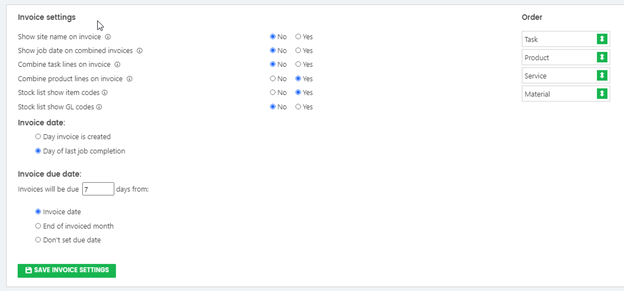
Xero Invoicing Set Up
You can connect JobFlow to Xero directly from your Invoice Settings. Once connected, JobFlow can automatically create draft invoices in Xero based on your job workflow.
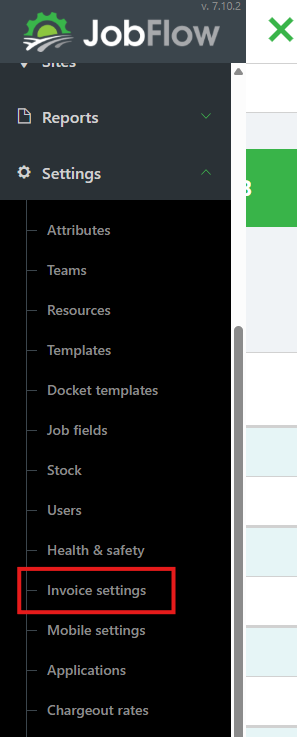
Open Invoice Settings
- Click the Hamburger Menu (top left).
- Select Settings.
- Choose Invoice Settings.
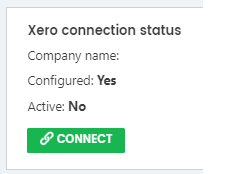
Your Xero Connection Status will display whether JobFlow is currently connected to Xero.
Start the Xero Connection
- Click Connect.
- This begins the authentication process.
Log in to Xero
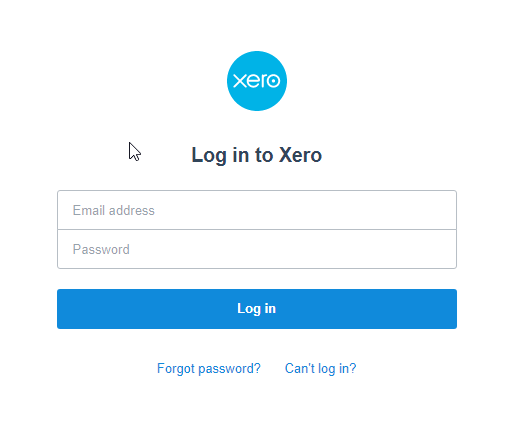
A Xero login window will appear.
- Enter your Xero email and password
- Complete any authentication prompts required by Xero
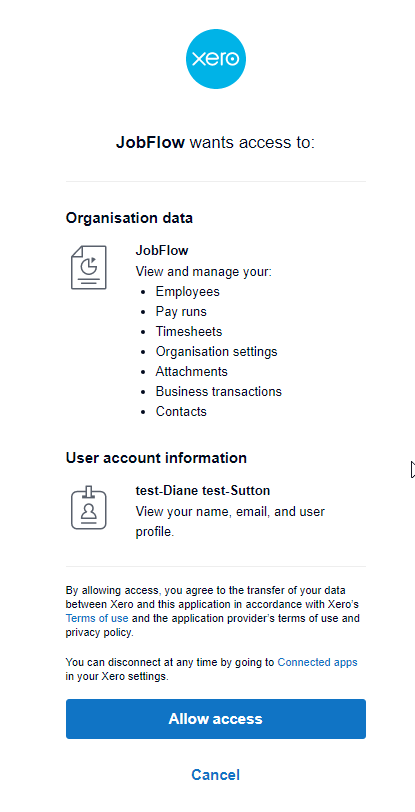
Allow JobFlow Access
Xero will ask you to grant JobFlow permission to access your organisation.
- Click Allow Access to continue.
Confirm the Connection
Once connected:
- The Xero Connection Status will update to show that Xero is Active
Configure Your Invoice Settings
After connecting, the Invoice Settings panel will allow you to configure:
- How invoices appear in Xero
- How invoice‑related information displays in JobFlow
- Any additional Xero‑specific options available for your workflow