Getting Started
Logging In
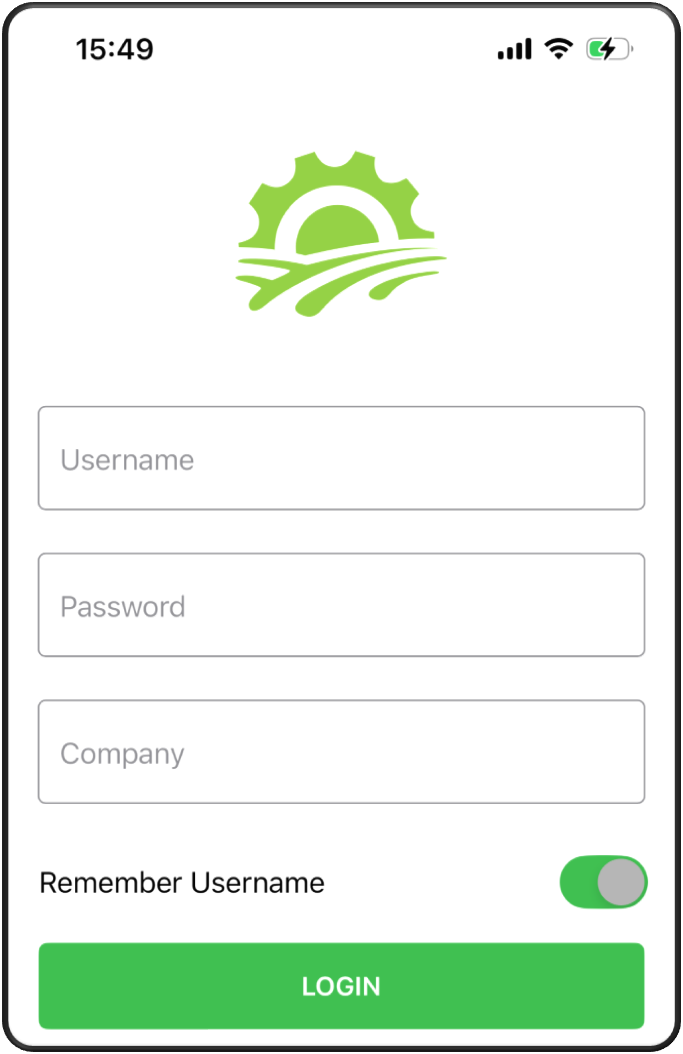
To begin using the JobFlow mobile app, log in with the details given by your office.
- Open the JobFlow app on your mobile device.
- Type your email address, password, and company name.
- If this is your first time logging in, slide the Remember Me toggle to the right. This saves your login details for future use.
- Tap Log In to access your dashboard.
If you forget your password, tap Forgot Password and follow the prompts.
A reset link will be emailed to you.
Navigating Arround the App
You can access additional features using the hamburger menu located in the top‑right corner of the screen.
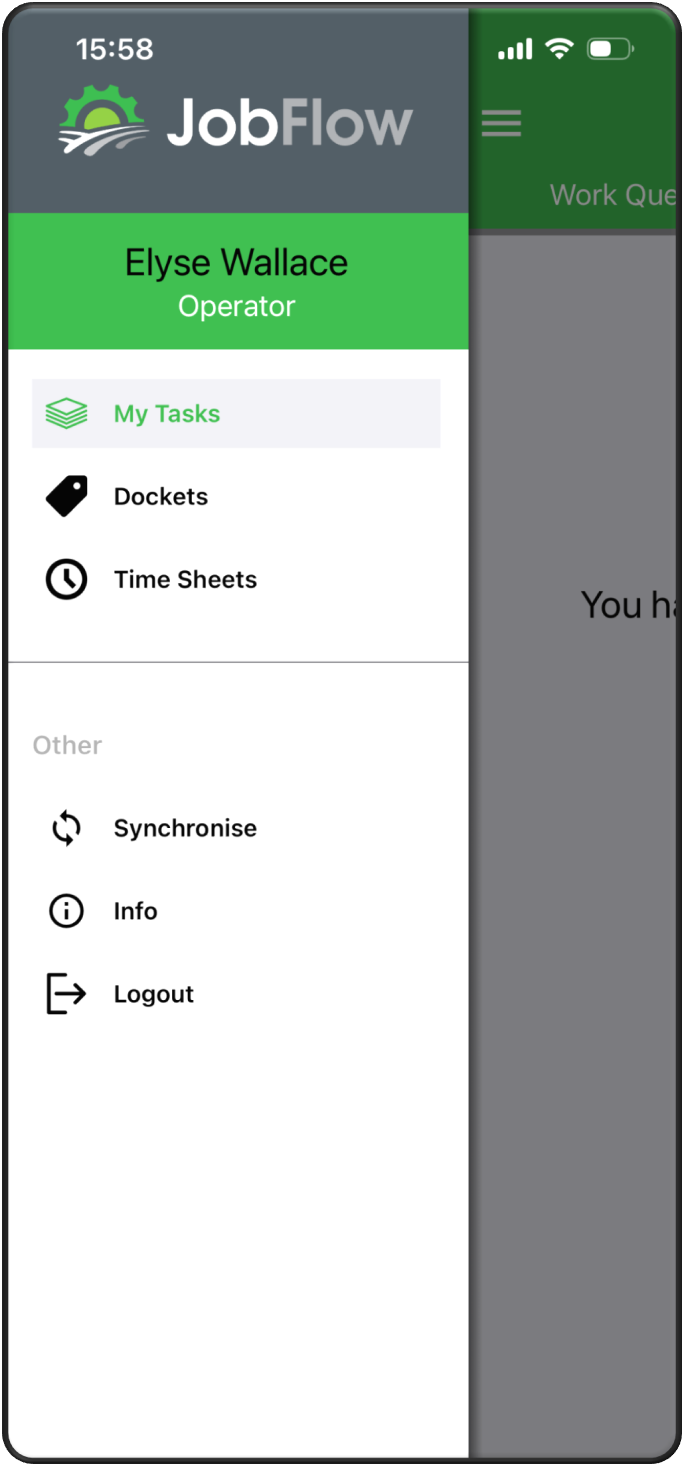
- Tap the menu icon to open the menu.
- From here, you can access your Timesheets, Create Docket, and Sync options.
My Tasks
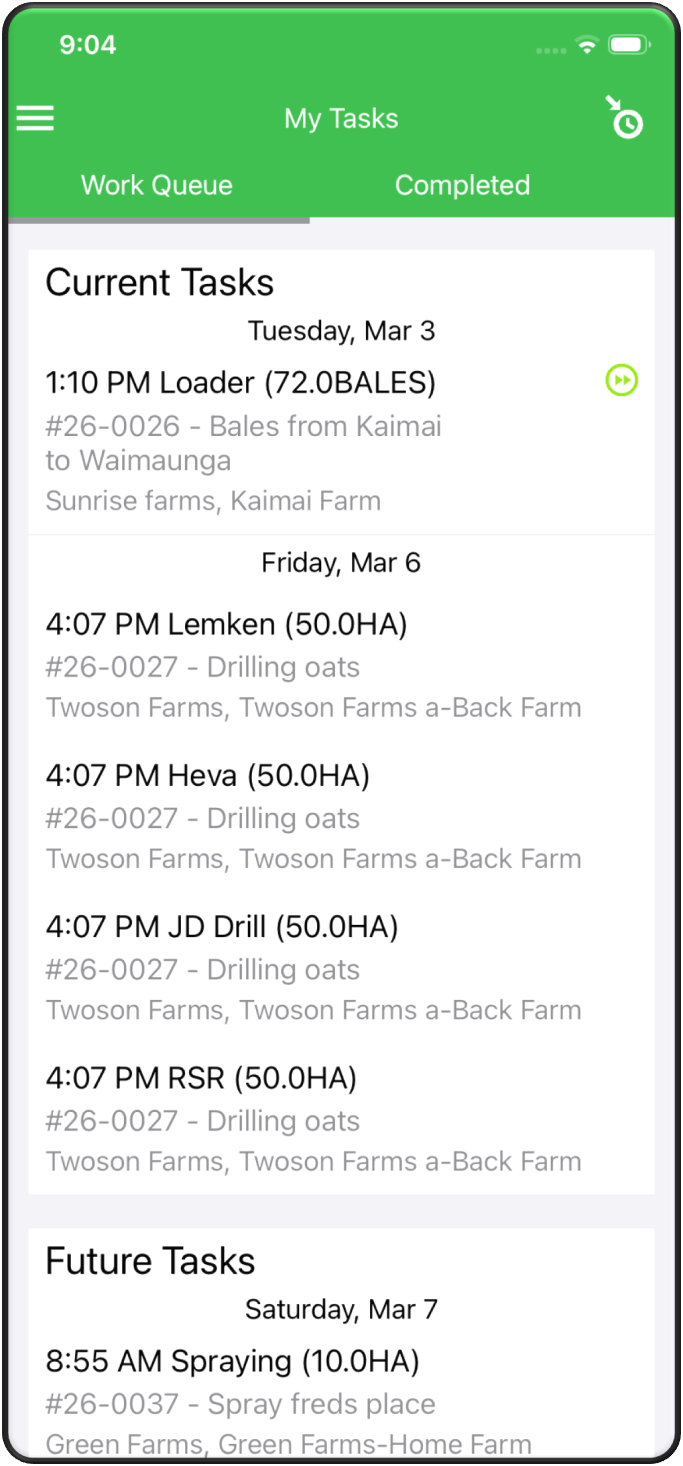
The My Tasks screen is your home base. It shows all work assigned and helps you stay organised throughout the day.
Your tasks are grouped into:
- Current Tasks – Jobs scheduled for today or overdue.
- Future Tasks – Upcoming jobs listed in date order.
Each job appears as a tile showing key details such as job type, date, customer, and site.
Offline Mode
If you lose signal while on site, the app automatically switches to Offline Mode.
While offline:
- Notes, photos, and time entries are stored on your device.
- When your connection returns, the app automatically syncs your data.
- This makes sure your work is saved and nothing is lost.
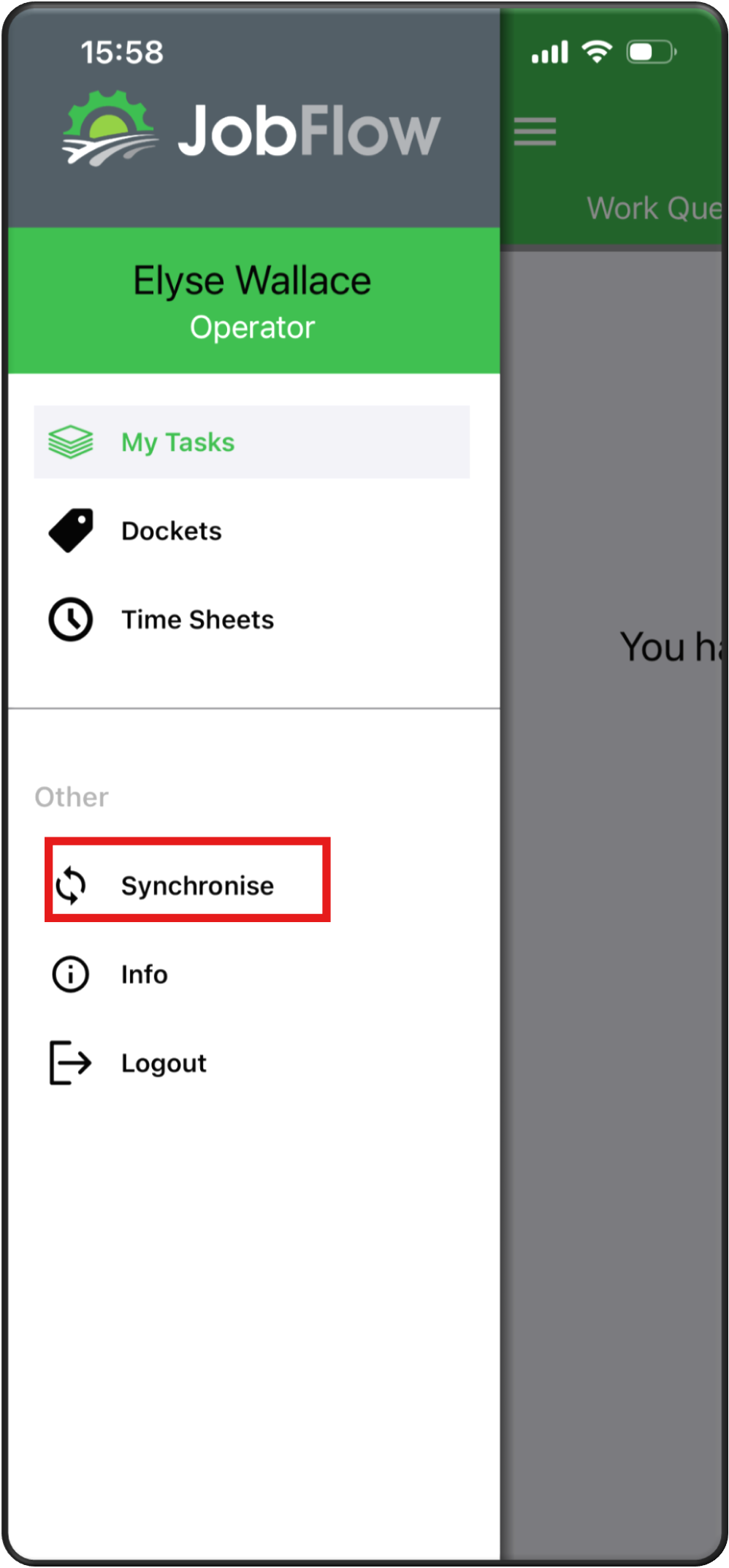
If the app does not sync automatically, you can manually sync your data from the hamburger menu.