
Adding a New User
Follow these steps to create a new user and assign the correct access.
Open the Users Page
You can access user settings from the main menu.
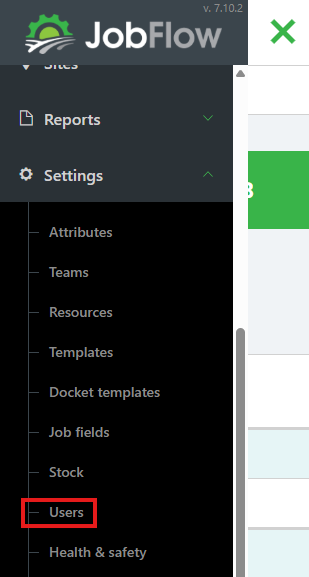
- Open the Hamburger Menu (top-left corner)
- Navigate to Settings → Users
Add a New User
- On the Users page, click Add User (bottom left)
- This opens the user creation form

Enter Login Details
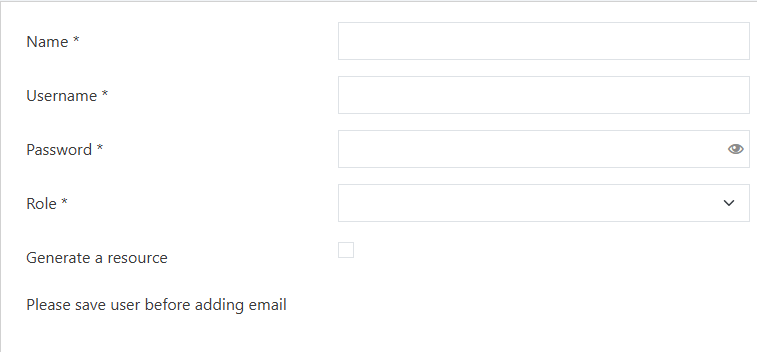
Fields marked with an asterisk (*) are required.
Enter the following:
- Name
- Username
- Password (case‑sensitive)
- Role (select from the dropdown list)
Link or Create a Resource
Every user must be linked to a resource if they are to be assigned to tasks in the mobile app.
- JobFlow will automatically generate a resource if you select:
- Operator, or
- Team Leader
- If you select Admin, or if a resource does not already exist:
- Tick Generate Resource
Save the User
- Once all required information is entered, click Save (bottom left)
- The user is now active and can log in using the credentials you created.

Add an Email Address
After saving the user, you can add an email address to their profile.
- Click Add email beside the Email heading.

- This will open a pop‑up window where you can enter the email address.
- Enter the email
- Click Confirm
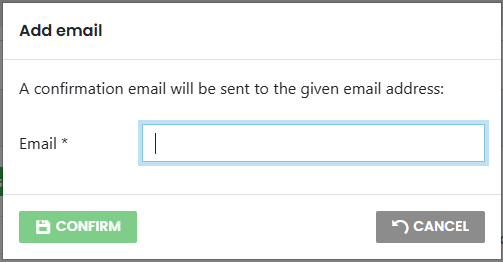
- This will initiate a verification process
- An email will be sent to the user
- Until confirmed, the profile will display Not confirmed

- Once verified, the label updates to Confirmed
On the right‑hand side of the screen, you will also see a list of the user’s Registered Devices.

Link the User to Payroll
If you are using JobFlow Timesheets for payroll:
- Click the Link button in the Payroll section
- This connects the user to payroll for timesheet processing
