Linking Chargeout Rates
Chargeout Rates allow you to assign the correct billing codes, rates, and Xero‑linked items to your work. These options become available once your Xero connection has been completed.
Open Chargeout Rates
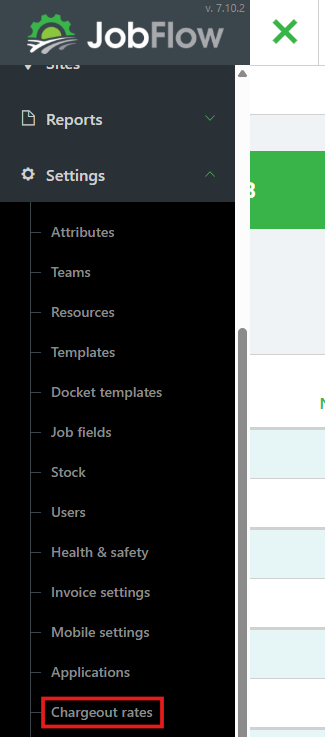
- From the dashboard click the Hamburger menu (top left).
- Select Settings
- Click Chargeout Rates
Syncing Chargeout Rates from Xero
If Xero has new or updated items available to sync, you will see a number in brackets beside the Sync from Xero button at the bottom left of the screen.

- Click Sync from Xero to open the list of available rates.
- On the sync screen, you can:
- Tick the checkbox at the top right to select all items
- Or individually tick the specific rates you want to sync

- Once selected, complete the sync to bring these Xero items into JobFlow.
Add a New Chargeout Rate
If you cannot find the rate you need in the Xero sync list, you can manually create a new chargeout rate.
- Click Add Chargeout Rate (bottom right)
- Enter the required details:
- Rate Name
- Rate Amount
- Item Code (from the drop down selection).

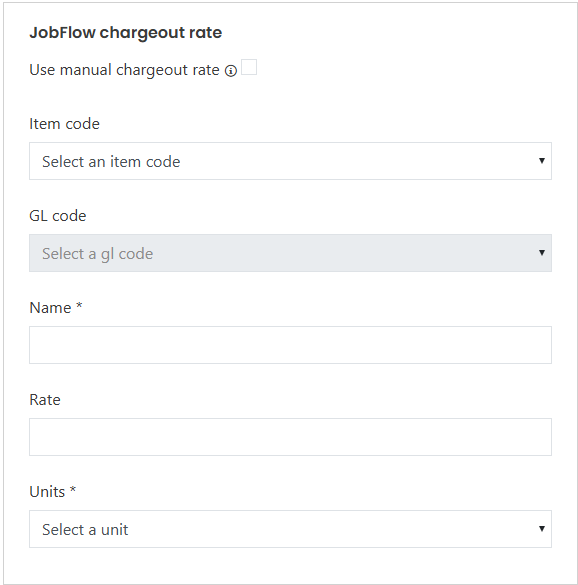
Once an Item Code is selected:
- The GL Code will pre‑populate with the matching code from Xero
- All dropdown boxes will display items imported or synced from Xero
Save the Chargeout Rate
- Click Save (bottom left).

If you decide not to create the new chargeout rate:
- Click Discard Changes to return to the Chargeout Rates screen
Your new chargeout rate will now be available when creating jobs, tasks, and dockets.