
Using Timesheets
Timesheets allow users to record the hours they work each day, removing the need for paper timesheets.
This section covers Admin‑accessed timesheets and Mobile timesheets.
Admin‑Accessed Timesheets
Open the Timesheets Report
- Open the Hamburger Menu
- Navate to Reports → Timesheets
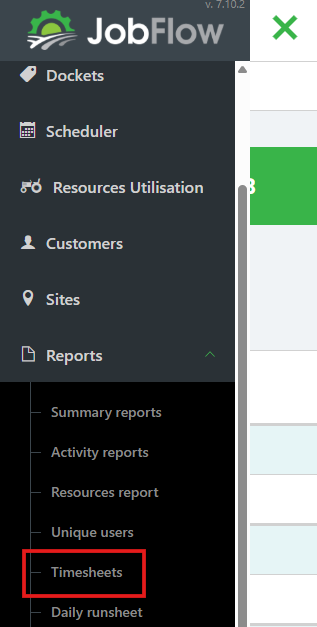
This page lists all timesheets submitted for the selected week.
Change the Week or View All Users
- When using this report for the first time:
- Set your Week Ending Day
- Choose how many Weeks to Display, using the drop downs in the top right.
- To navigate between weeks:
- Use the date selector arrows (top right)
- To filter users:
- Select All Users to view or enter timesheets for users who have not submitted one, or
- Type a User's Name into the filter box to search for a specific person

Creating, Editing, or Overriding Timesheets
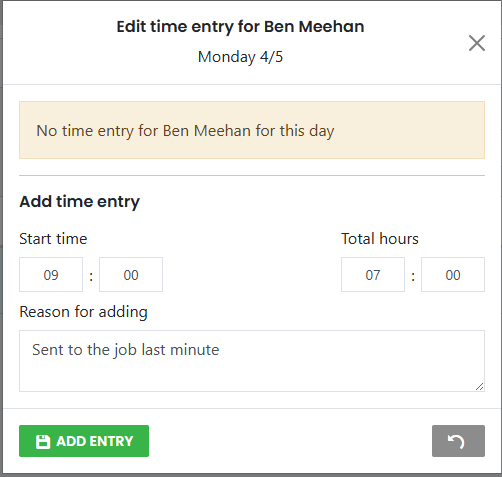
Create a New Timesheet
- Select All Users, or search for the User you need to update.
- Click the time field for the user and day you want to add

- Enter:
- Start time
- Total hours
- Reason for adding
- Click Add Entry
Edit or Override an Existing Timesheet
- Click the timesheet entry for the user and day you want to update
- Override the time entries
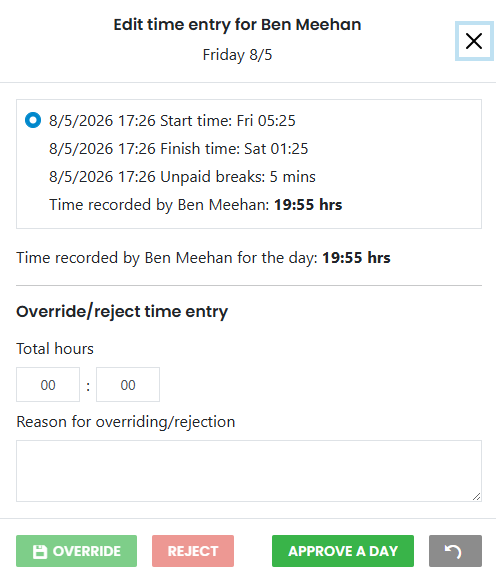
- Choose one of the following actions:
- Override
- Reject
- Approve A Day
Exporting Timesheets
You can export all timesheet data for the selected week:
- Click Summary CSV

- Confirm that you have the correct "Current date range:"
- In the Time format field, select Hours and minutes with colons from the drop down box.
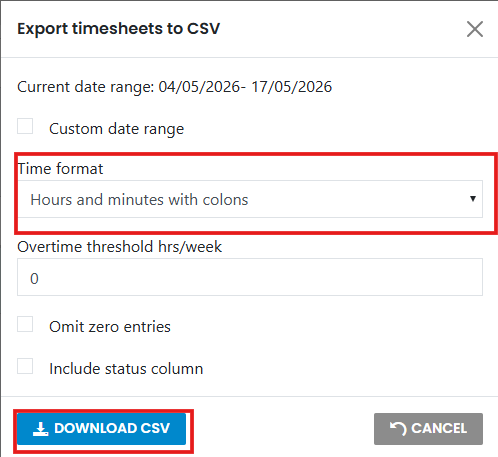
- Click Download CSV at the left bottom of the pop up box to create a CSV file

Use this file to assist with your payroll processing.
How to use Timesheets on the Mobile
If your timesheets are recorded through the app, you will need to enter your start, finish, and break times each day.
Access Your Timesheets
- Tap the timesheet shortcut icon in the top‑right corner (available from any screen)
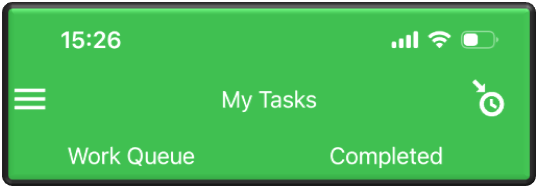
To Record Your Time
- Tap the date you want to record.
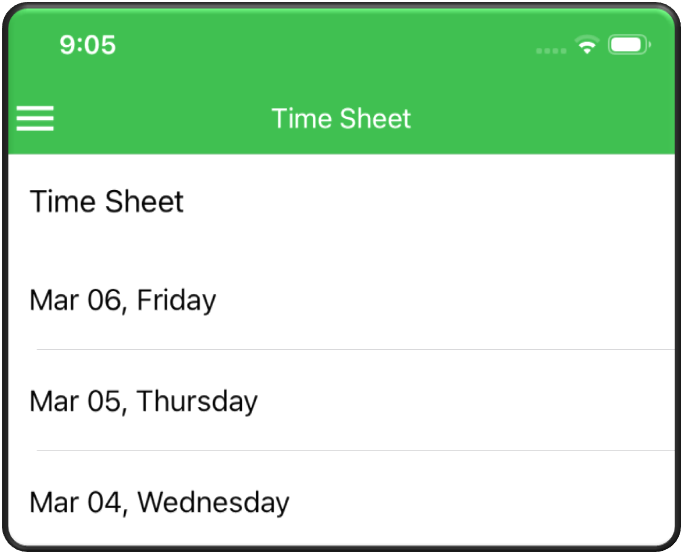
- Select your Type:
- Work
- Sick Leave
- Annual Leave
- Enter your start time, finish time, and breaks.
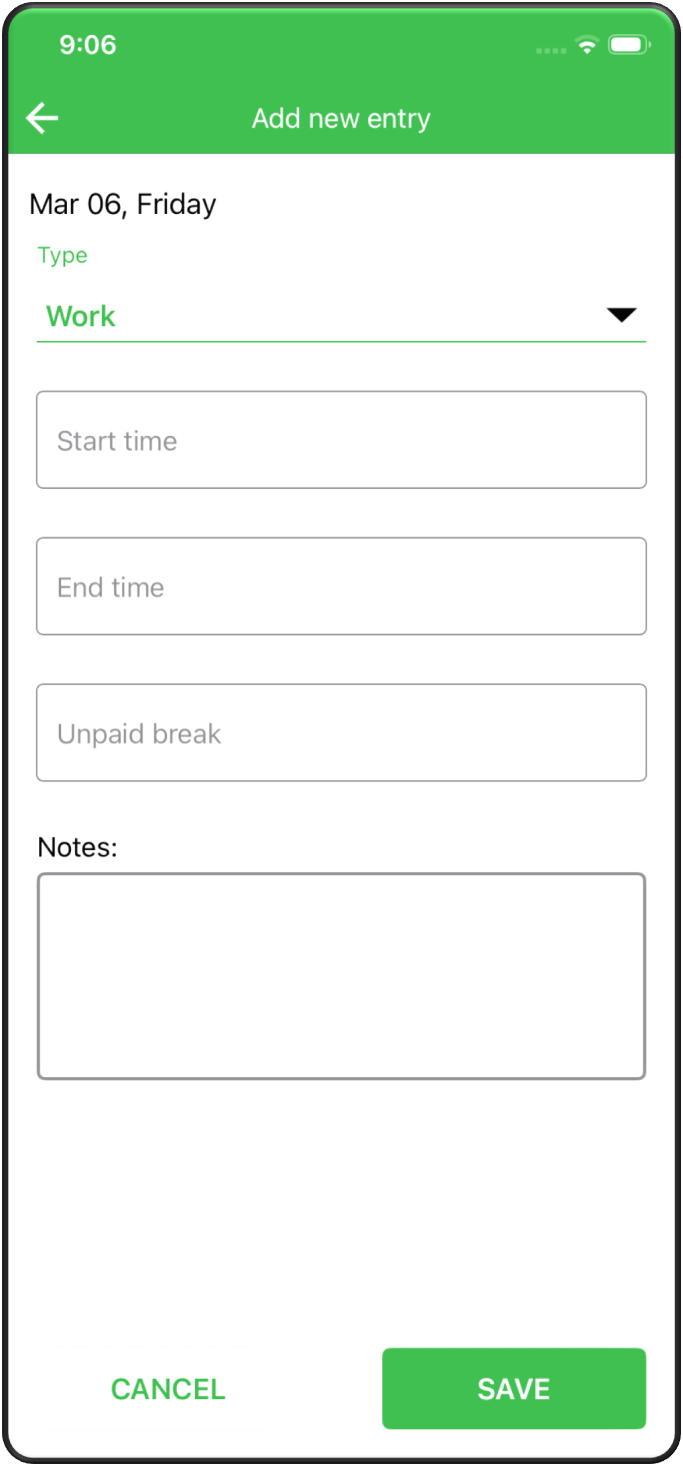
- Tap Save