Scheduling Jobs
When a job has been added from the field, using Quick Add or Duplicate, additional information may be required before it can move from New → Booked → Scheduled.
Use this guide to update the job details so it is ready for scheduling.
Find the Job
- From the Dashboard, click into the Job List.

- Select the New filter tick box (top left)

- Ensure no other filters are selected.
- If you know the job or customer name, type it into the Search Bar.

- Use the dropdown filters beside the search bar to narrow your results.

Check Core Job Details
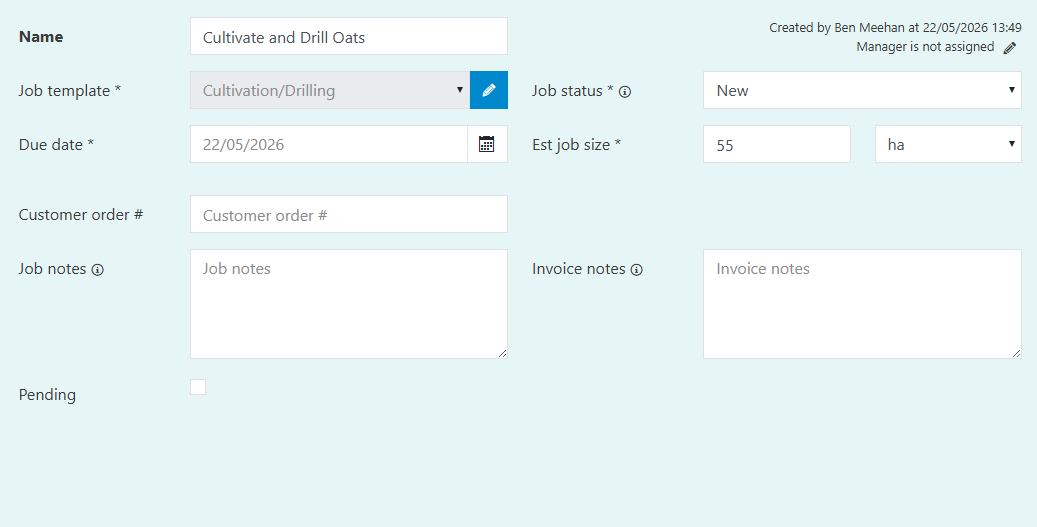
- Ensure these four fields are completed:
- Customer
- Job Type
- Job Size & Units
- Due Date

Update Information
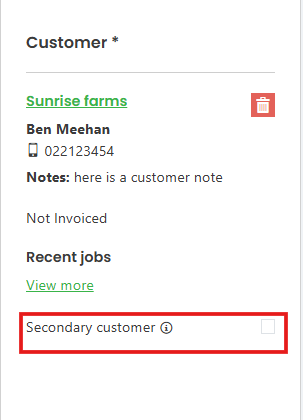
- Add a Secondary Customer (if needed).
- Tick Secondary Customer in the customer section
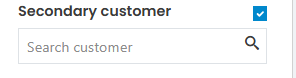
- Type the customer name into the search box and select the correct record
Rename the Job (optional)
Give the job with a descriptive name for easier tracking
Fill in Job-Specific Details
- Add relevant information based on the job type
- Use the available text fields and dropdowns
- These fields come from the selected Job Template
Confirm Site Location
Confirm all details are correct,
- Update, Change or Delete details where needed.
- Add notes for the operators to see.
Review and Add Tasks, Services or Materials
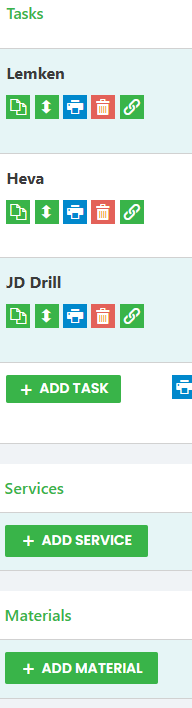
- Confirm the default task list is correct
- Add additional items using the buttons on the left side of the screen:
- Tasks
- Services
- Materials
If the item exists in the template:
- Select and add
If not listed:
- Update the template first, then return to the job
Adjust Time and Add Size Estimates
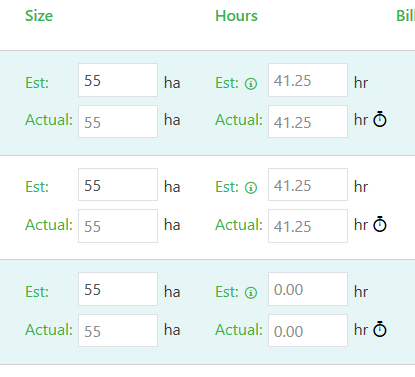
- Review system‑generated hour estimates
- Update based on site knowledge
- Add estimated site sizes where required
Set Billable Tags
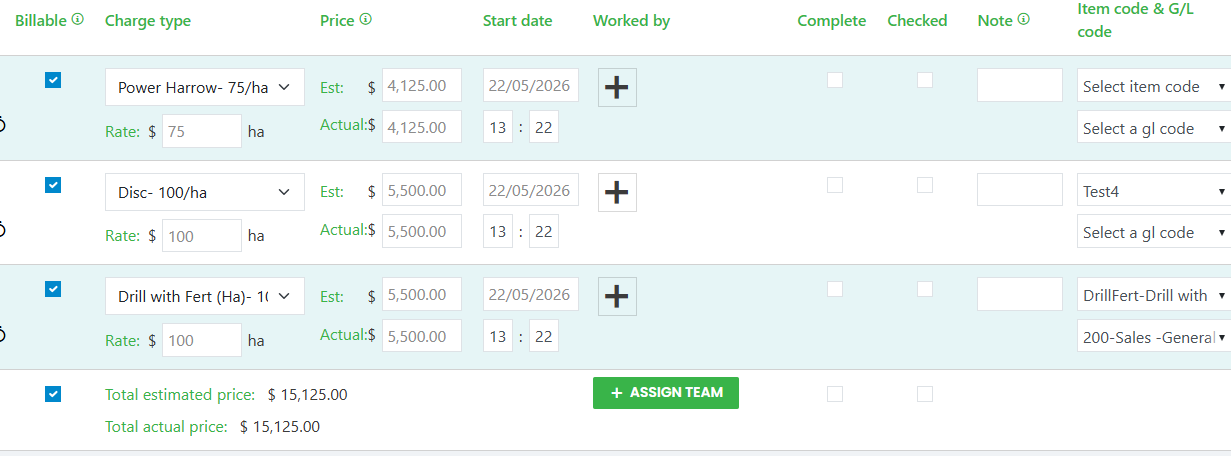
- Tick the Billable box for all lines that should appear on the invoice
- Confirm the charge type and price is correct
- Select Item code and G/L code from the drop down boxes, if not pre-populated
Assign Workers
You can assign workers individually or assign a full team
- Assign Individual Workers
- Clicking on the + icon beside the task
- Search for and select the correct recourse
- Assign a full team
- Click the + assign team button at the bottom of the tasks section.

- Select a pre-set team in the pop-up.
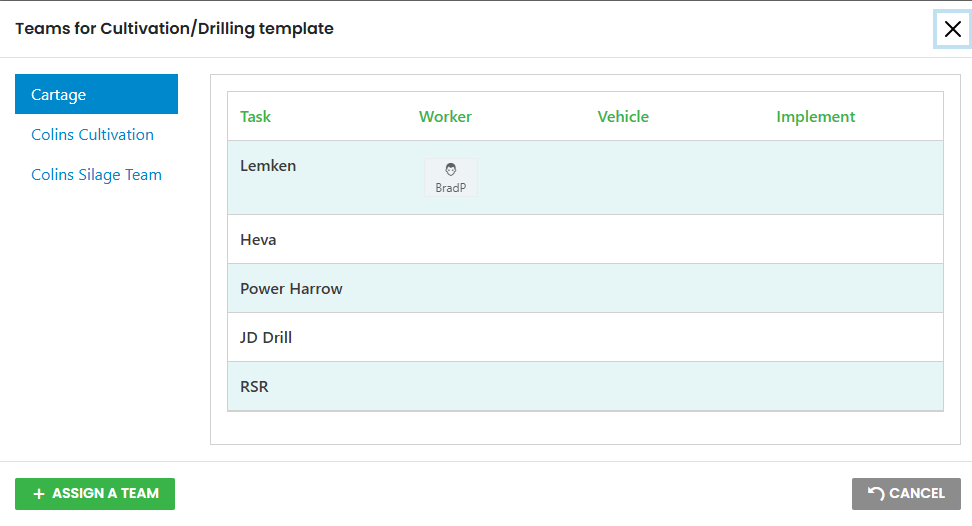
- Click + Assign a Team to save the selection.
Change Job Status
- Jobs in the New status won’t appear in the scheduler or on the operators mobile app.
- You can update the job status in two ways:
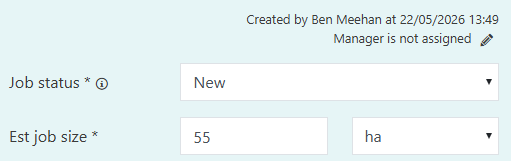
- Inside the Job
- Use the Status dropdown.
- Select the correct status.
- Click save.
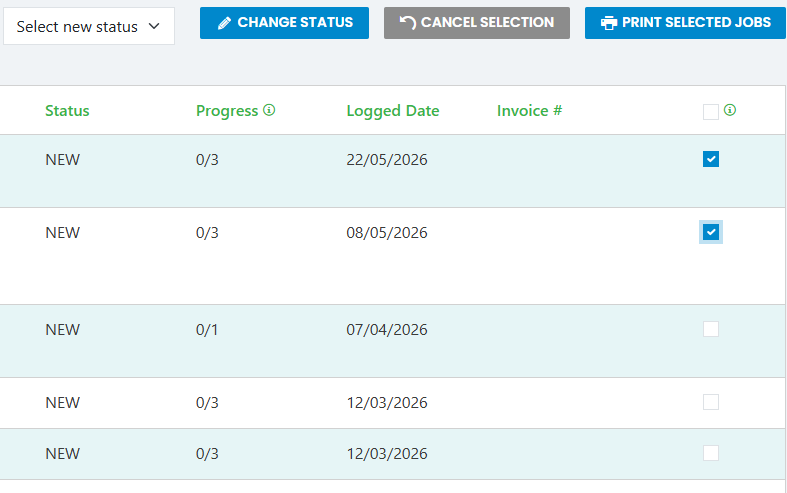
- From the Job List
- Tick the checkbox on the far right of one or maore jobs.
- use the change status dropdown above the list.
- Select the correct status.
- Click Change status.