
Invoicing to MYOB
JobFlow can create a draft invoice in MYOB when the correct billing conditions are met. This ensures your invoicing is accurate, consistent, and aligned with the tasks completed in the field.
Accessing the Job Page
- Open the Hamburger Menu (top‑left corner)
- Select Jobs
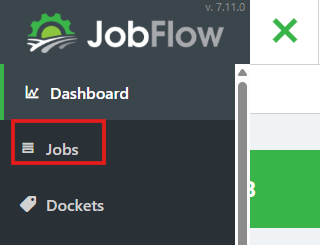
- Or, nativate from the dashboard into Job List

Finding the Job You Want to Invoice
To locate the correct job:

- Use the search bar at the top of the screen
You can search by: - Job number
- Job title
- Customer name
- Check the job’s current status.
- Make sure the job is in a phase suitable for invoicing:
- Completed
- Review
- Or scroll down the Jobs page.
- Click the correct job to open it.
This will take you to the full Job Page where tasks, billing preview, and job phase controls are displayed.
Ensure Tasks Are Ready for Billing
For a task to appear on the MYOB invoice, it must meet two conditions:
- Billed checkbox ticked
- Completed checkbox ticked

Only tasks that meet both conditions will be included in the Billing Preview and sent to MYOB.
Review the Billing Preview
At the bottom of the Job Page, review the Billing Preview to confirm:
- Quantities
- Pricing
- Line items
- Charge‑out rates
- Any additional notes
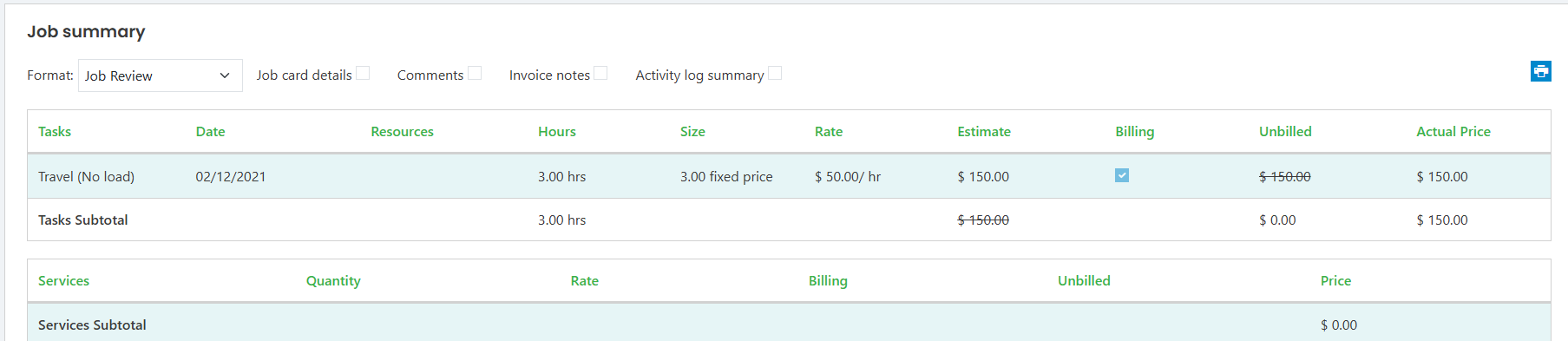
This preview shows exactly what will be sent to MYOB.
Move the Job to Invoice
Once you are satisfied with the Billing Preview:
- Change the Job Status to Invoice

- Click Save
JobFlow will:
- Save the job
- Send the invoice data to MYOB
- Create a draft invoice in the MYOB Sales section
How JobFlow Populates Your MYOB Invoice
JobFlow automatically fills the MYOB draft invoice using the information from your job:
- Linked MYOB Customer: taken from the customer linked in JobFlow
- Customer Information: populated from the JobFlow customer record
- Date: taken from the job’s completed date
- Ship: populated from size/hours on the task, based on the charge‑out rate unit
- Item Number: taken from the item code assigned to the task
- Description: taken from the charge‑out rate name in the job template
- Price: taken from the charge‑out rate
- Total: calculated from the task price
- Job Number & Invoice Notes: taken directly from the job page
This ensures your MYOB invoice matches the work completed in JobFlow.
