Linking MYOB customers to JobFlow
Use these steps to link your JobFlow customers to their matching MYOB customer records.
Linking Multiple Customers
- Open the Hamburger Menu
- Select Customers → Customer List
- At the bottom of the screen, click Show Unlinked Customers

This displays all customers in JobFlow that are not yet linked to MYOB.
Select a Customer to Link
- Click Link Customer beside the customer you want to link
JobFlow will display the most likely MYOB matches
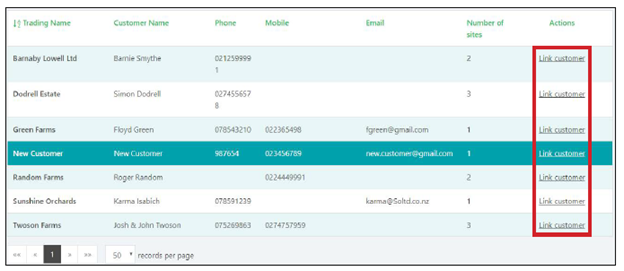
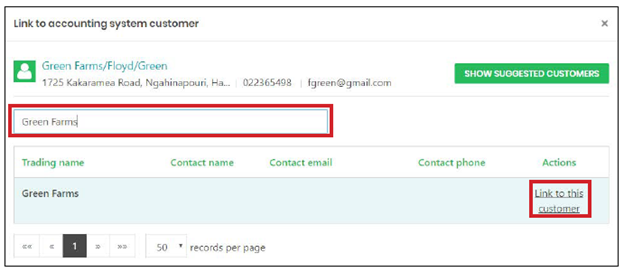
If the correct customer does not appear:
- Use the search bar (highlighted in red) to refine the list
If the customer still does not appear, check for spelling differences or inconsistent naming in either JobFlow or MYOB
Once you find the correct MYOB customer:
- Click Link to this customer
The customer is now linked.
Linking and checking a single customer:
- Open the specific customer from the Customer List
- If the customer is not linked to MYOB, a message will appear prompting you to link them •
- Click Link

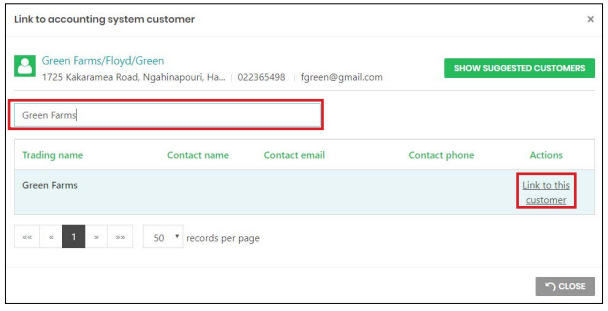
You will see the same MYOB match dialog used in the bulk‑linking process:
- Search if needed
- Select the correct MYOB customer
- Click Link to this customer
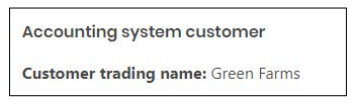
Once linked, the Customer Page will display the MYOB connection information.