
Setting up Docket Templates
Docket templates allow you to standardise the tasks your operators can select when creating or submitting dockets.
Open Docket Templates
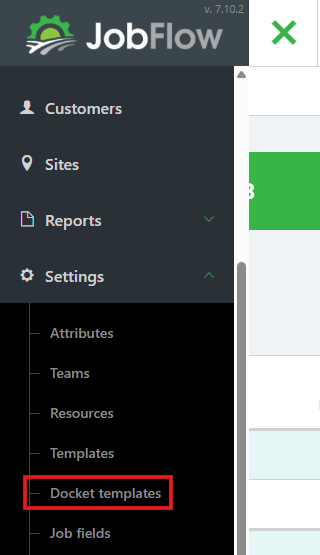
- Click the Hamburger Menu (top left).
- Select Settings from the dropdown.
- Click Docket Templates.
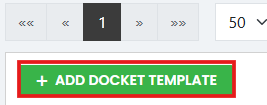
Manage Existing Templates or Create a New One
- To create a new template, click Add Docket Template (bottom left)
- Enter Template Details
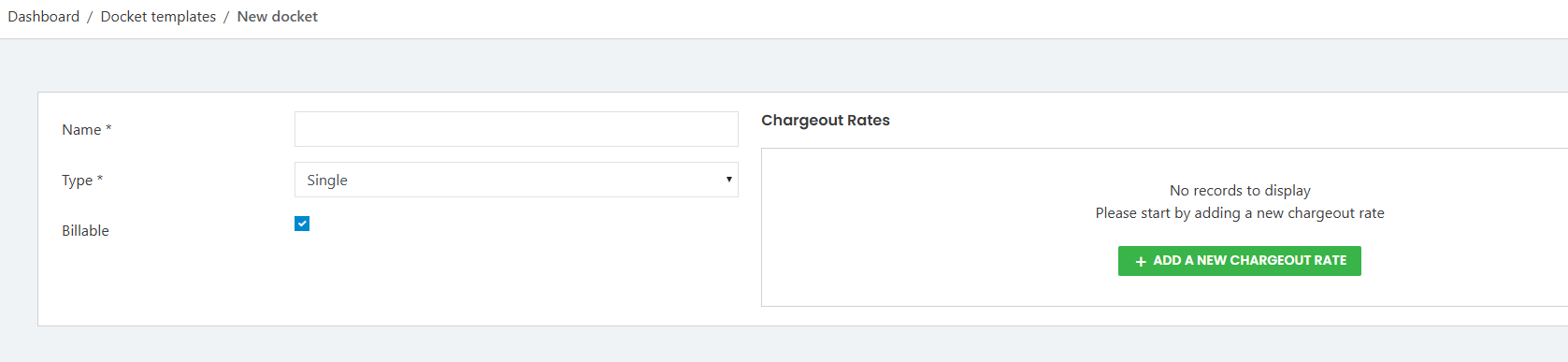
- Name the docket template
Example: Mowing – Ryegrass - Select a Type
Example: For mowing tasks, choose Single. - Check the Billable tick box for it to be charged out on the invoice.
- Name the docket template
- Enter the Charge Out Rate
This should match the charge‑out rate used for the same task type in your standard job templates. - Click into the text box to view the drop down box and select the charge-out rate.
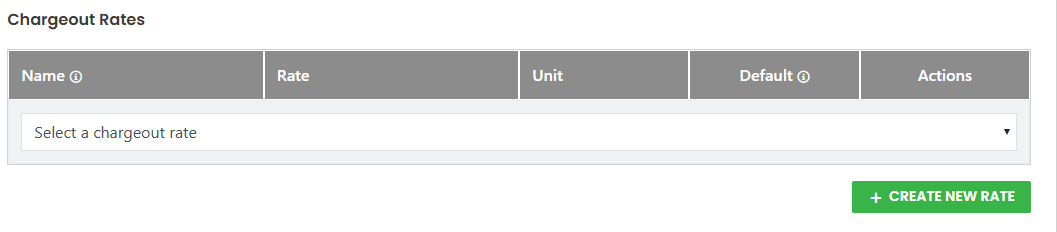
- Click add existing rate
- Save the template by clicking Save. (bottom left) You can also undo your changes by clicking on the Discard Changes button at any time. This will return you to the Docket Templates screen.


- Operators will now be able to select this docket template when creating or submitting dockets.