
Connecting JobFlow and Xero
Follow these steps to connect JobFlow to Xero. Once connected, JobFlow can synchronise customers, item codes, and account codes directly from Xero.
Before beginning, make sure you have access to your Xero account and your JobFlow public key.
Once connected, JobFlow will be able to synchronise customers, item codes, and account codes directly from Xero.
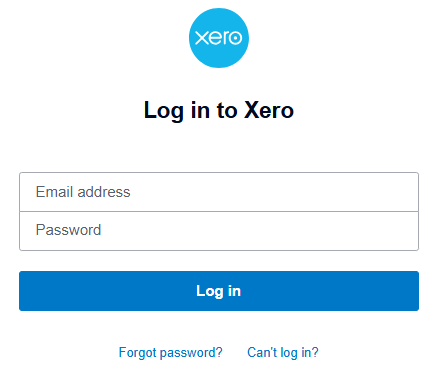
Log in to Your Xero Account
- Log in to your Xero account using your usual credentials
- Ensure you have access rights to add applications
Add JobFlow as an Application
- On the right‑hand side of the screen, click the waffle icon to open the Apps menu.
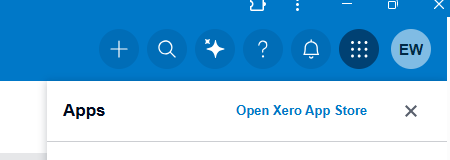
- Select Open Xero App Store.
- Search for JobFlow.
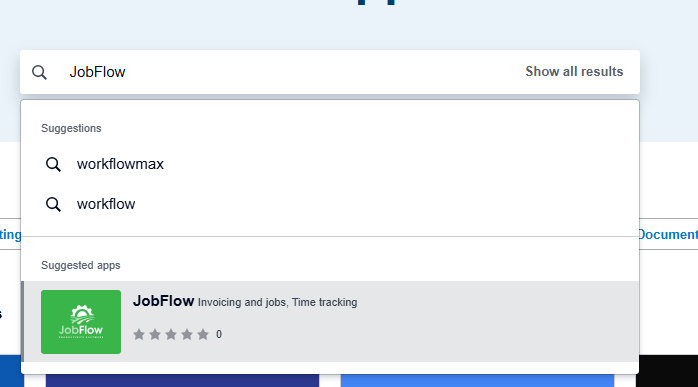
- Select the JobFlow app with the JobFlow logo.
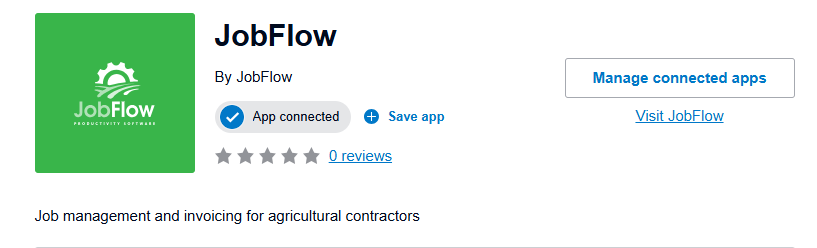
- Click Get App
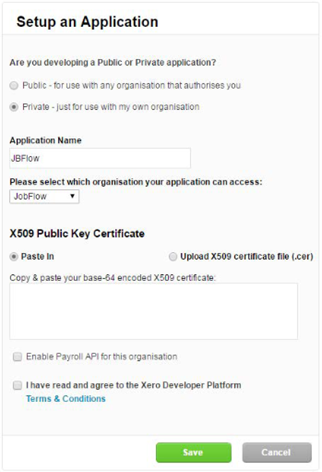
This opens the Set up an application page.
On this screen:
- Select Private
- Enter JobFlow as the Application Name
- For the X509 Public Key Certificate, ensure the option is set to Paste
- Paste the text version of your public key into the certificate box
- Tick the Terms and Conditions box
- Click Save
Send Your Credentials to JobFlow
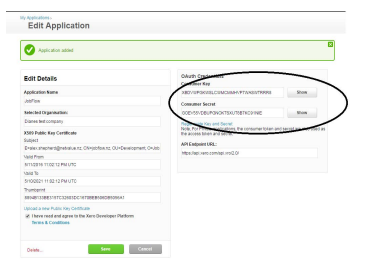
After saving, Xero will display the credentials required to complete the connection.
- Click Show next to Consumer Key
- Click Show next to Consumer Secret
- Copy both codes
- Email the codes to the JobFlow support team
JobFlow will add these credentials to your account and notify you once the connection is ready for testing.
How to Confirm the Connection Is Working
Once JobFlow support has enabled your connection:
- Open a job that is ready to be invoiced.
- Check that all billing details are correct.
- Change the job status to Invoice and save.
If the connection is working:
- The job screen will update
- An invoice reference will appear under the customer details
What Syncs Between JobFlow and Xero
Item Codes
When connected, Xero Item Codes synchronise into JobFlow.
These codes become available when setting up:
- Templates
- Stock items
Account Codes
Your Xero Chart of Accounts also syncs into JobFlow.
These GL codes can be selected in:
- Templates
- Stock items
Client Details
JobFlow synchronises client information with Xero based on the Trading Name.
- If a matching Trading Name exists in Xero, JobFlow links to that client.
- If no match is found, JobFlow creates a new client in Xero.
- Updating client details in JobFlow will update the corresponding client in Xero.