
Adding Dockets to a Job - New or Existing
You can add dockets to an existing job or use them to create a brand‑new job directly from the Dockets screen.
Open the Dockets List
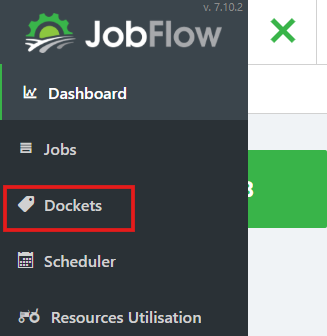
- Click the JobFlow menu (top left).
- Click Dockets.
- In the Dockets list, select the dockets you want to use.
- You can do this by ticking the checkbox on the right side of each docket.

Choose How You Want to Use the Dockets
Once you have selected the dockets, choose one of the two options at the bottom of the screen:
Option A: Create Job
Creates a new job from scratch using the selected dockets.
- Click Create Job (top right).
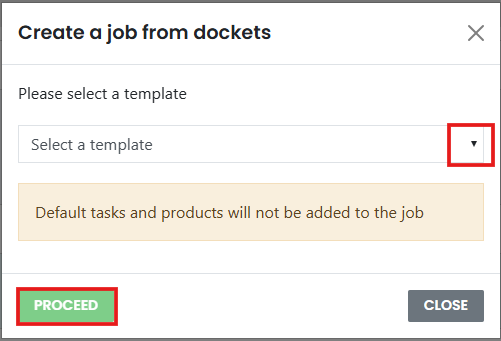
- Select the Job Template by clicking on the arrown to bring up the drop down list.
- Then click proceed.
- JobFlow will create a new job and add the selected dockets as tasks.
- Continue to set up the job as you would a new job.

Option B: Add to Job
Adds the selected dockets to an existing job.
- Click Add to Job (top right).
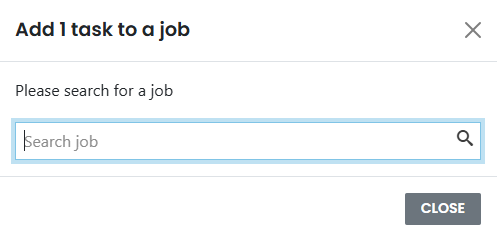
- In the pop up box type in the location of the job you want to add the docket to.
- A drop down box of possible relivant jobs will show up for you to select from, by clicking on the name.
- The dockets will be added to the job as new tasks.

Dockets Become Standard Job Tasks
After you proceed with either option:
• The selected dockets are added to the job as normal tasks.
• You can edit, schedule, or update them just like any other job task.