
Managing Workloads with the Resources Utilisation Page
The Resources Utilisation page gives you a real‑time preview of how scheduled tasks appear on your operators’ mobile devices. It helps you confirm workloads, identify unassigned tasks, and make quick adjustments to the schedule.
Accessing the Resources Utilisation Page
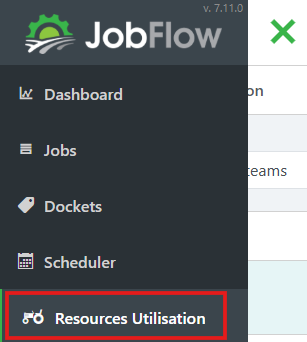
- Open the Hamburger Menu
- Select Resources Utilisation
Understanding the Page
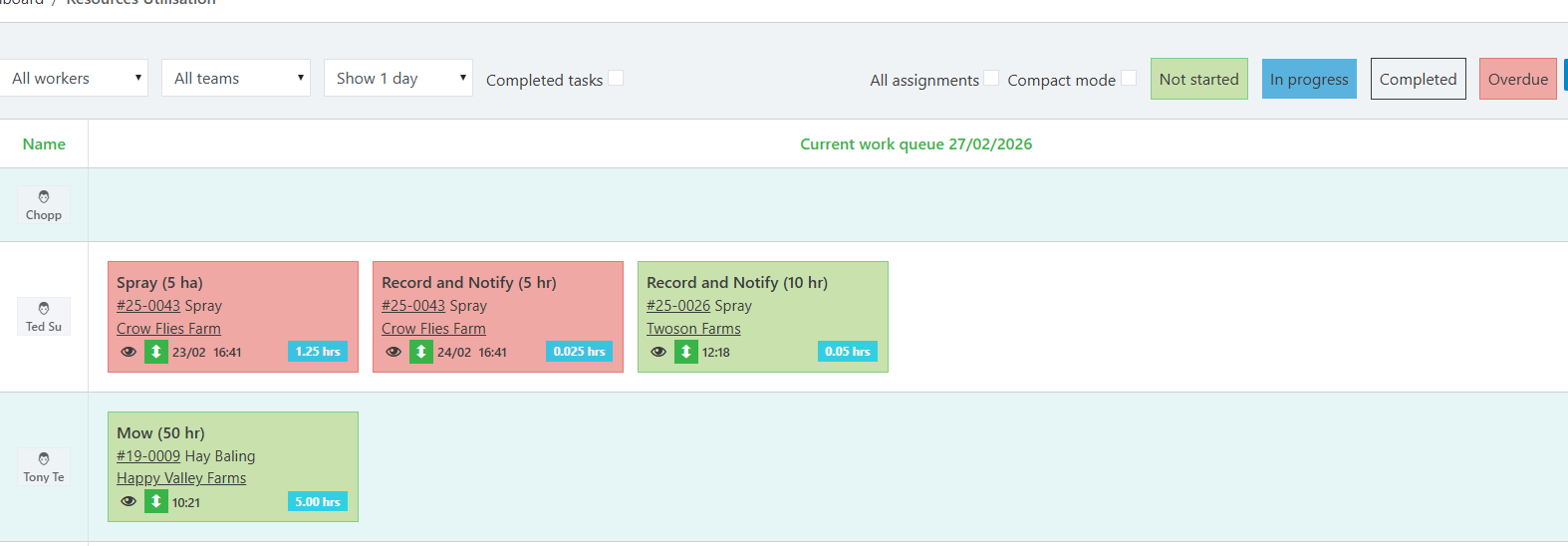
This page shows a mobile‑style view of each operator’s task list.
- It defaults to Today, displaying:
- Tasks due today
- Tasks up to 7 days overdue
- You can adjust the date range to show up to 4 days in the future.
Task Tile Colours
Each task tile uses colour to indicate its status:
- Blue: Task has been started
- Grey: Task has been completed
- Red: Task is overdue and not yet started
Viewing Unassigned Tasks
On the right-hand side of the screen, you’ll see the Unassigned Tasks tab.
- Click the tab to expand it
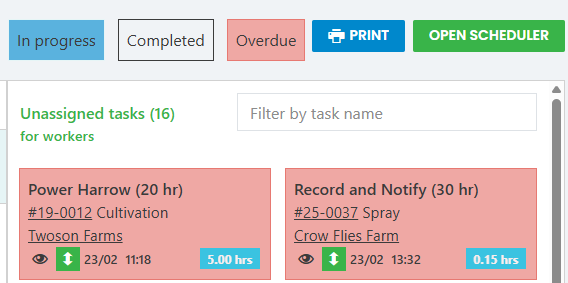
- This tab displays all tasks in the selected date range that have no assigned operator, machine, or implement.
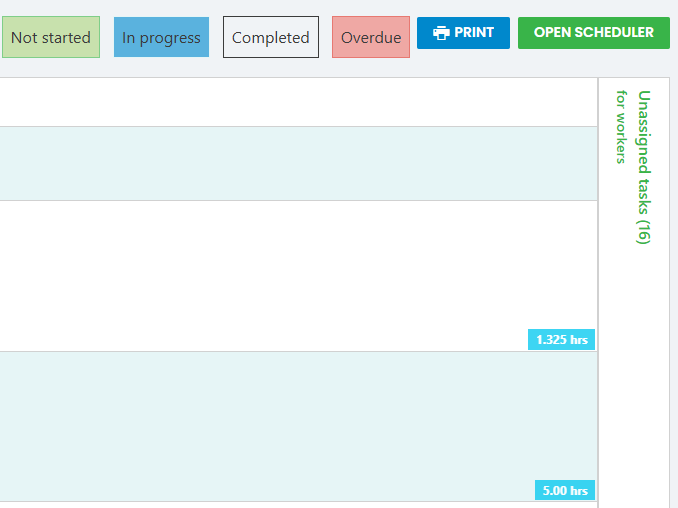
- You can also filter this list by task name to quickly find what you need
Adjusting the Schedule
The Resources Utilisation page allows quick drag‑and‑drop scheduling updates.
Reassigning Tasks
You can drag a task tile:
- From one operator to another
- From the Unassigned column into an operator’s queue
The task will automatically slot into the correct order based on its due time.
Reordering Tasks Within an Operator’s Queue
To change the order of tasks for a specific operator:
- Click the eye icon on the task tile

- A Change Details pop‑up will appear
- Adjust:
- Due time
- Date
- Assigned resources (operator, machine, implement)
Click Update (bottom left of the pop‑up)
Changes apply immediately to the operator’s mobile schedule.