
Exporting Customers and Inventory from MYOB
When you first set up your JobFlow account, the JobFlow team will send you a pre‑formatted spreadsheet workbook.
This workbook ensures your customer and inventory data imports cleanly into JobFlow.
To complete the import, you will:
- Export the required lists from MYOB
- Copy and paste the data into the JobFlow workbook
- Email the completed workbook back to JobFlow Support
Exporting a Customer Address List
Follow these steps to obtain an Address List of customers from MYOB:
- Open the Command Centre
- Along the bottom of the screen, select Reports.
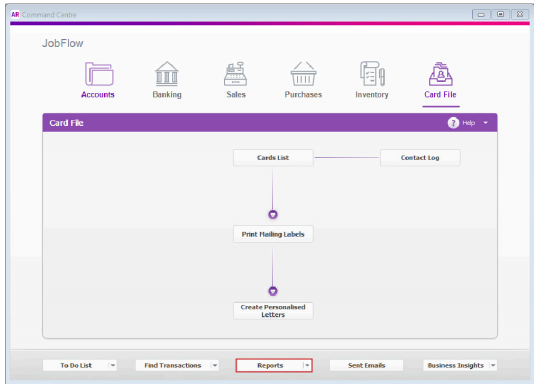
- Under Card, select Address List
Click Export to Excel
- MYOB will open the report in Excel
- Save the Excel file
- Copy and paste the data into the spreadsheet workbook supplied by JobFlow
- Ensure all column titles match the data you enter
- Do not rename or remove any columns
- Keep formatting consistent with the JobFlow workbook
- Email the completed spreadsheet workbook back to JobFlow
Exporting an Inventory List
To obtain an Inventory List from MYOB:
- Along the bottom of the Command Centre
- Select Reports
- Under Inventory, select Items List

- Click Export to Excel
- MYOB will open the report in Excel
- Save the Excel file
- Copy and paste the data into the spreadsheet workbook supplied by JobFlow
- Ensure all column titles match the data you enter
- Do not rename or remove any columns
- Keep formatting consistent with the JobFlow workbook
- Email the completed spreadsheet workbook back to JobFlow
Tips for New Users
- The JobFlow workbook is structured to match their import format, paste data directly without altering column names.
- If a column in MYOB does not exist in the JobFlow workbook, leave it out.
- If the workbook contains fields you do not use, leave them blank.
- Always double‑check spelling and formatting for customer names and item codes to avoid duplicates during import.