Simple Jobs
Opening a Task
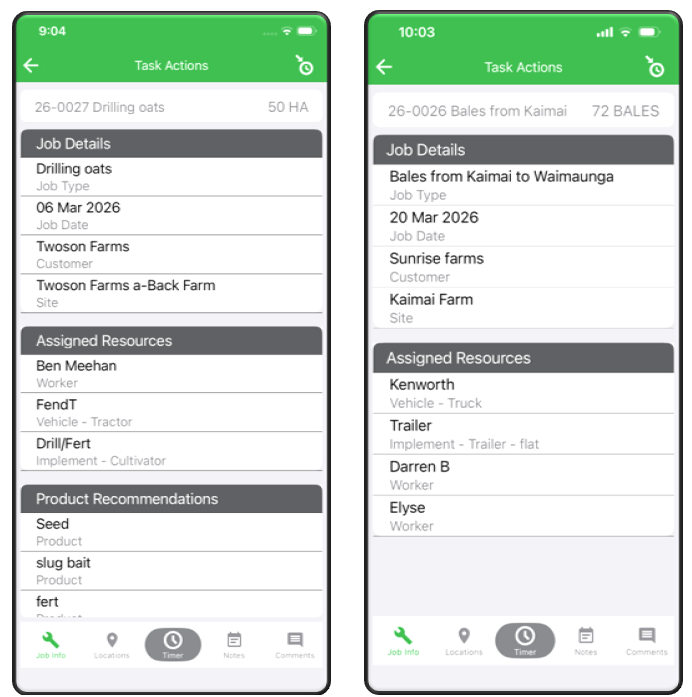
Tap any Task tile to open the full job details.
Inside the Task you can view:
- Job Info – Job type, description, customer, and site details.
- Assigned Resources – Machinery, and implements required and other team members on the job.
- Product Recommendations – Materials or products required.
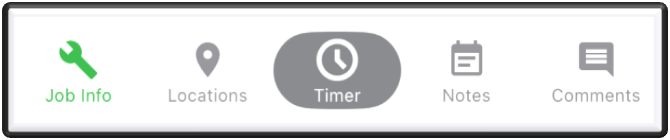
Action buttons at the bottom of the screen allow you to record and complete your work.
Job Info
The Job Info section provides all essential details for completing the task, including:
- Job type and description.
- Customer name and contact details.
- Site address.
- Scheduled date and time.
- Special instructions or notes from the office.
Use this section to confirm the job requirements and ensure you are at the correct location.
Location
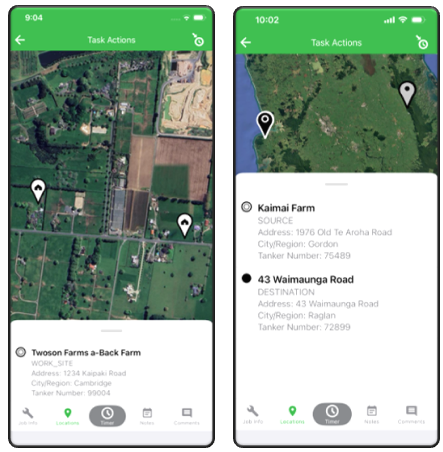
The Location tab shows the job site on a map.
This helps you:
- Get to the correct address.
- Confirm you’re at the right property.
- View nearby landmarks or access points.
If your device has navigation apps installed, tap the address to open directions.
Timer
The Timer feature allows you to track your time on site.
- Tap Start when you begin work.
- The timer runs in the background while you complete the task.
- Tap Pause if you need to stop work temporarily and record the reason.
- Tap Resume to continue.
- Tap Finish when the task is complete.
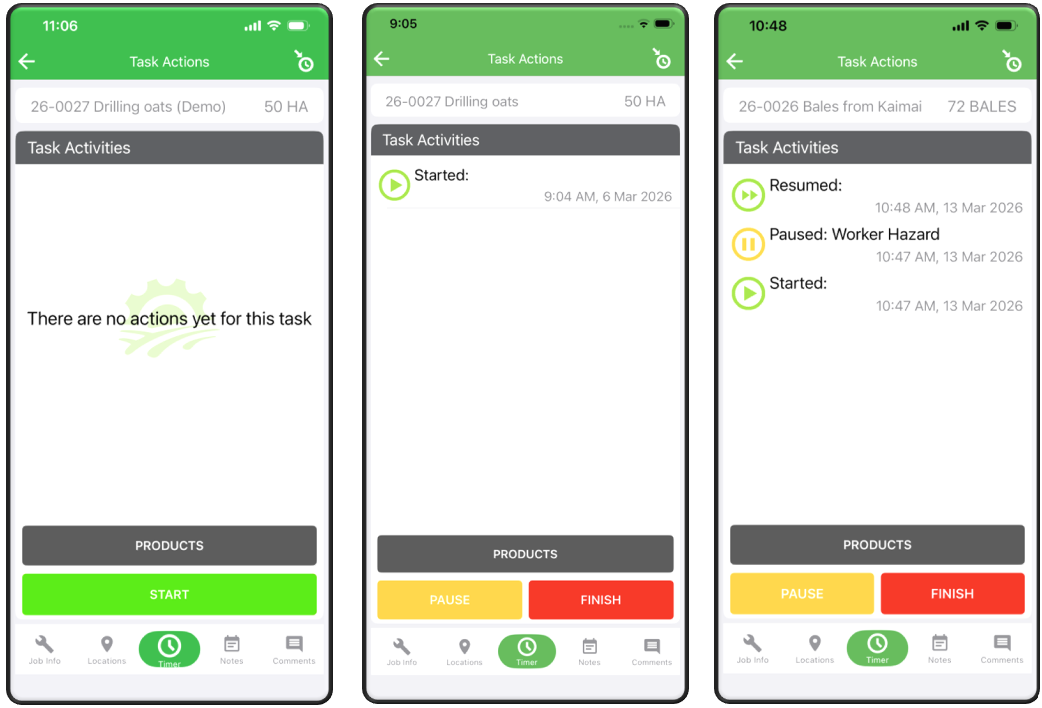
If you are assigned a task that was paused by another team member, you can still resume it.
Your recorded time is automatically added to the job’s actuals.
Finishing the Job
When you have completed your work on site, tap Finish to close the job.
This opens the Confirm Task screen.
Fill in the details:
- Work completed.
- Materials used.
- Additional notes.
- Any variations or unexpected issues.
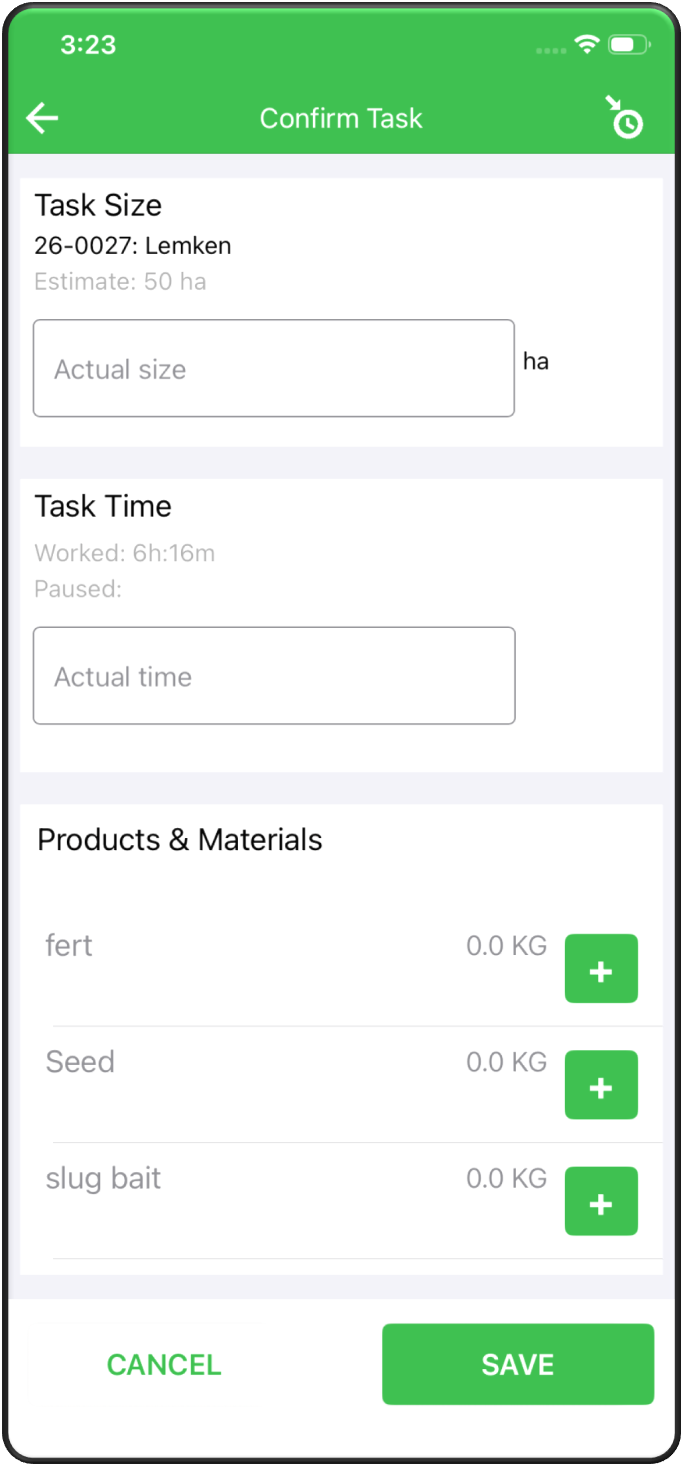
Once all fields are completed:
- Review the information.
- Tap Save.
Saving the job lets the office know that the work is complete and ready for invoicing.
Health and Safety Check
When opening the timer for the first time on a job, you must complete a Health and Safety check.
This must be confirmed before you can start recording your time.
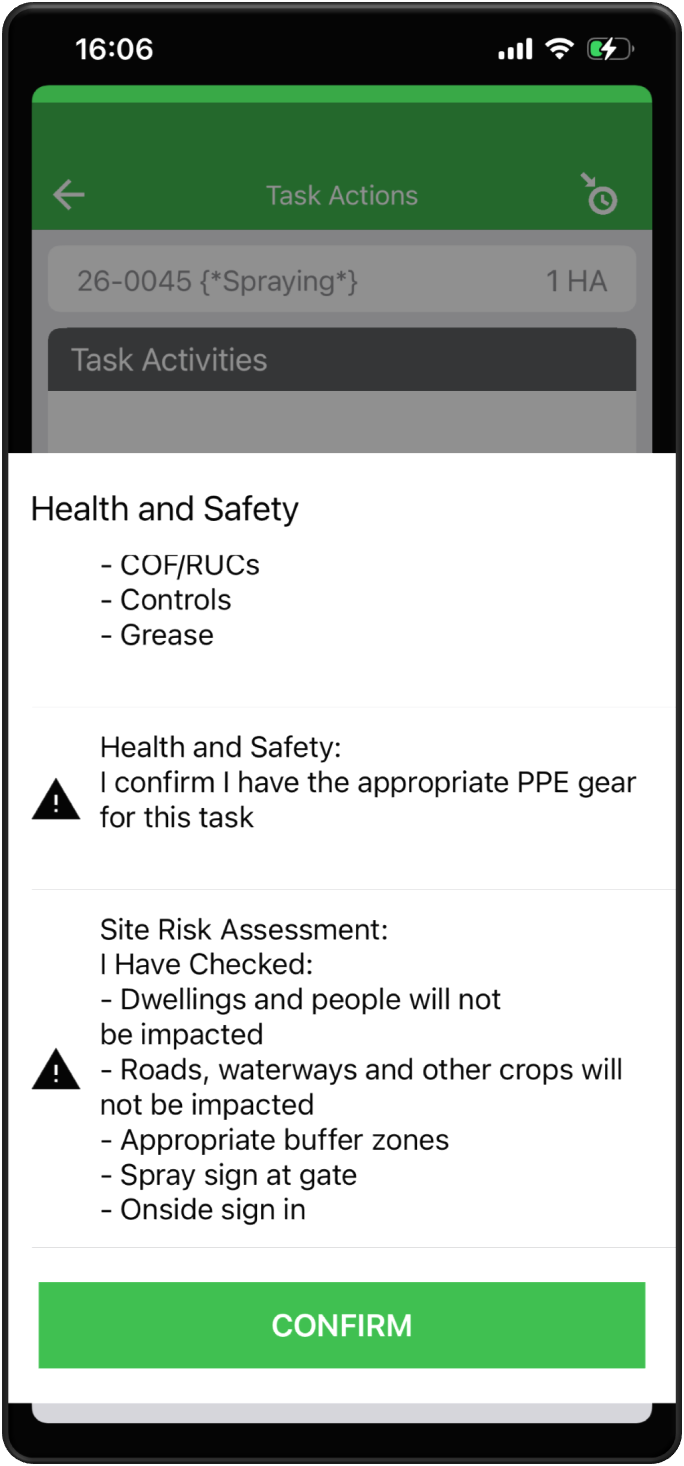
- Review each question carefully.
- Make sure the site is safe to begin work.
- Tap Confirm to proceed.
This check only appears once per job per user.
Resource Meters
Use the Resource Meters widget to record additional usage information for the task, such as:
- Fuel usage.
- Engine hours.
- Header hours.
When you begin the task, enter the starting value when prompted.
When you finish the task, enter the ending value.
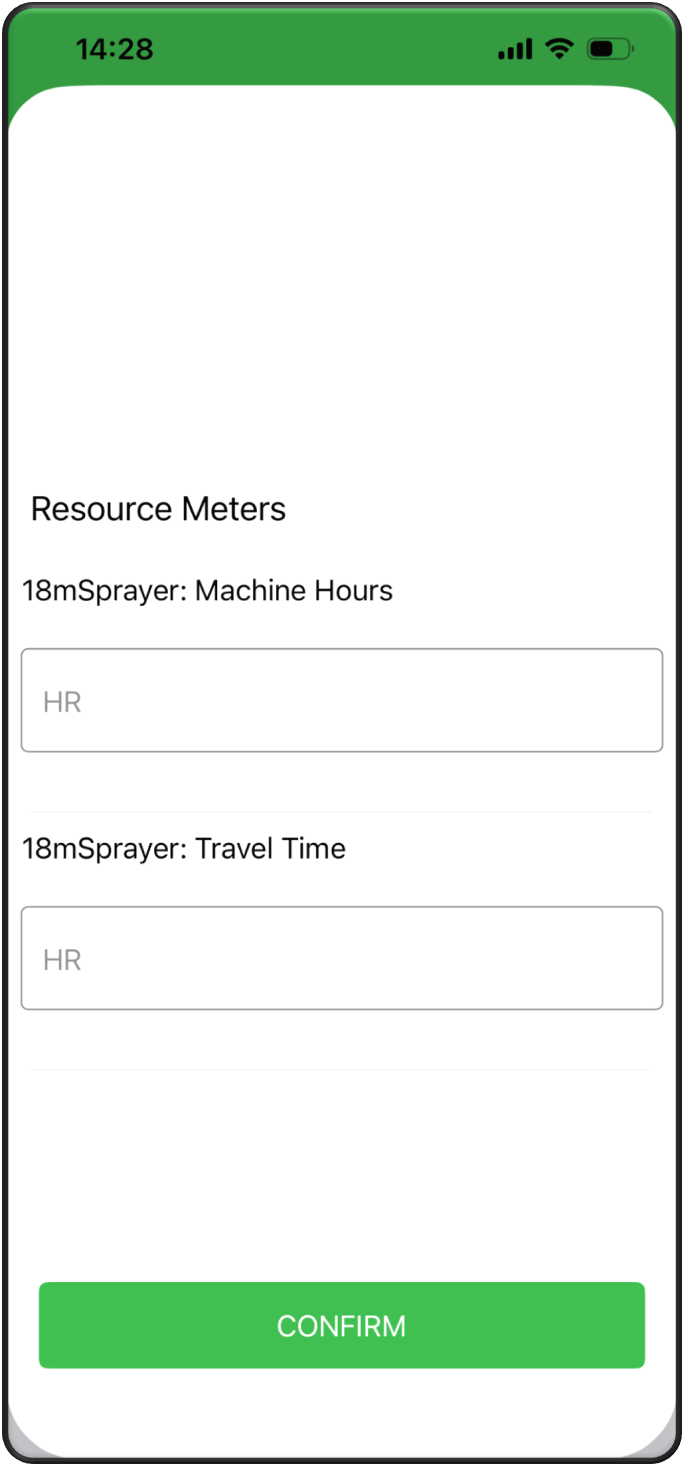
This information helps the office track equipment usage correctly for each job.
Adding Products
You can add products or materials to the job directly from the Task Action screen.
To add an item:
- Tap the Products bar located above the Start, Pause, and Finish buttons.
- If products are pre loaded, they will appear in a list and you can select the required item.
- Tap the green + next to the product you used.
- Type in how much you used.
- Tap Save.
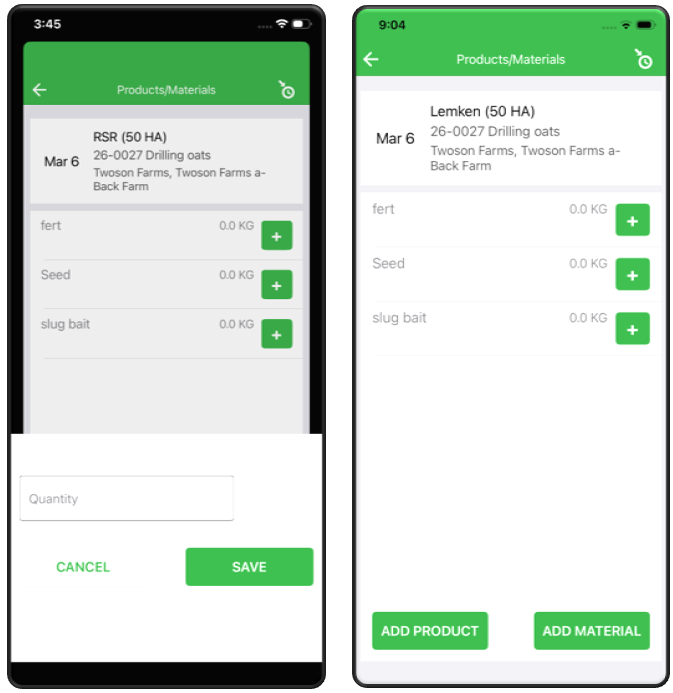
If no products are preloaded:
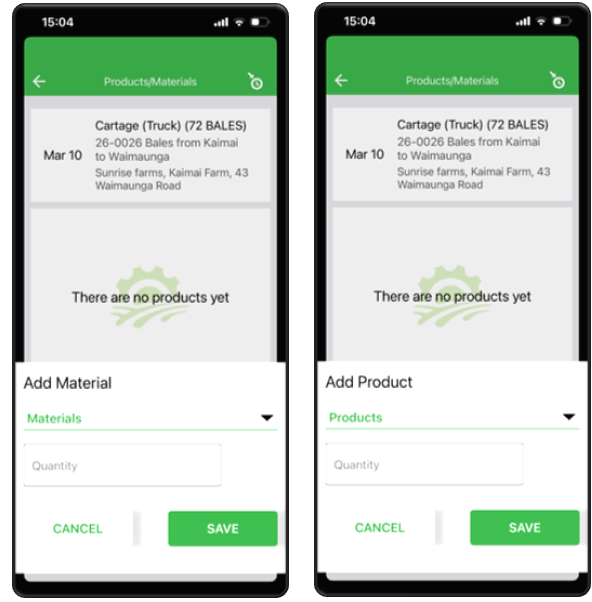
- Tap the dropdown arrow to open the product list.
- Choose the product you are using.
- Enter the quantity.
- Tap Save.
Adding Products
The process for adding materials is the same as adding products.
Notes
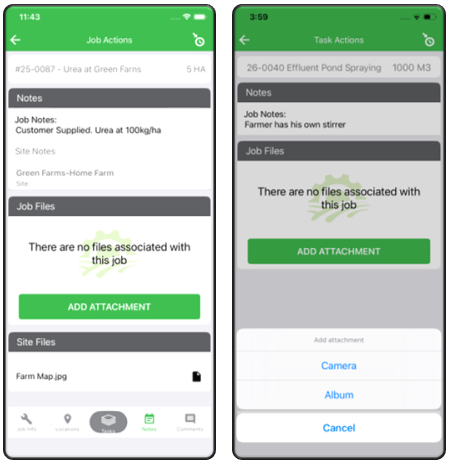
The Notes section shows job notes that have been entered by Team Leaders or the Office and allows you to add photos to show what has happened on the job to keep the office updated on what occurred on site.
To add photos to support your task.
- Tap Add Attachment.
- Choose Camera to take photos directly.
- Choose Album to upload photos from your device.
Comments
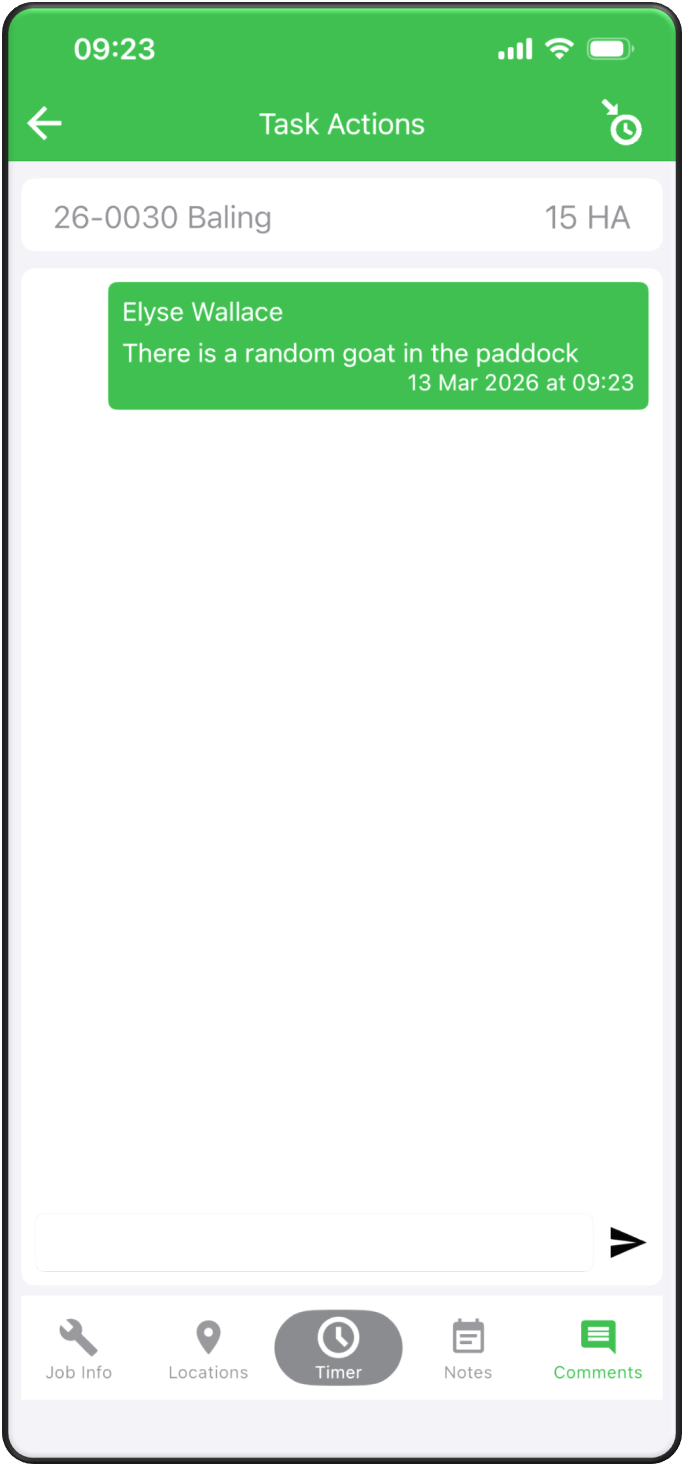
The Comments section is a chat feature inside the job.
It is used to send messages between you, the office, and any other operators assigned to the same job.
Use comments when you need:
- To let the office, or another operator know about important information such as hazards etc.
- To record ongoing details such as paddock areas or seed used.
- To notify the office of delays or changes.
Comments are time stamped and visible to all assigned operators.
To add a comment:
- Tap into the comment box.
- Type your message.
- Tap the plane symbol on the right.
Completed Tasks
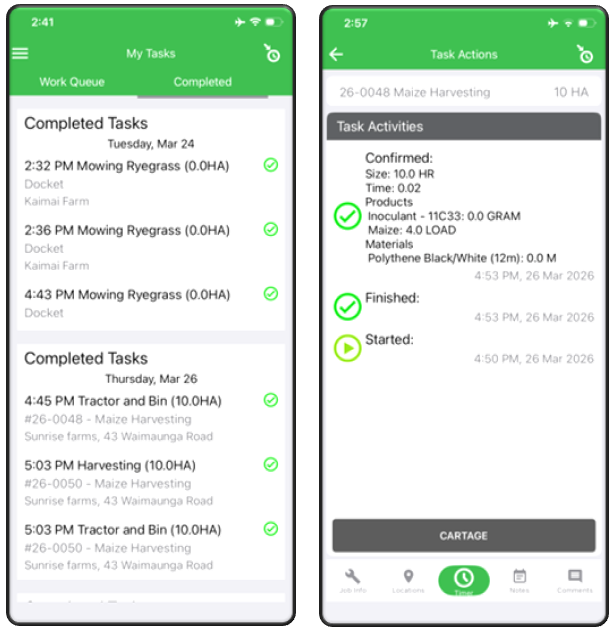
In the My Task screen you have the titles ‘work queue’ and ‘completed’.
When you tap on Completed it will bring up all the task that you have been assigned and are completed.
Completed tasks will show for default time of 6 days.
You can still add comments to a completed task, but products, hectares, and time entries are locked.
To add a comment:
- Open the completed task
- Use the Comments function at the bottom right of the screen