
Team Leader Tools & Permissions
As a Team Leader, you have access to additional tools and permissions within the JobFlow mobile app.
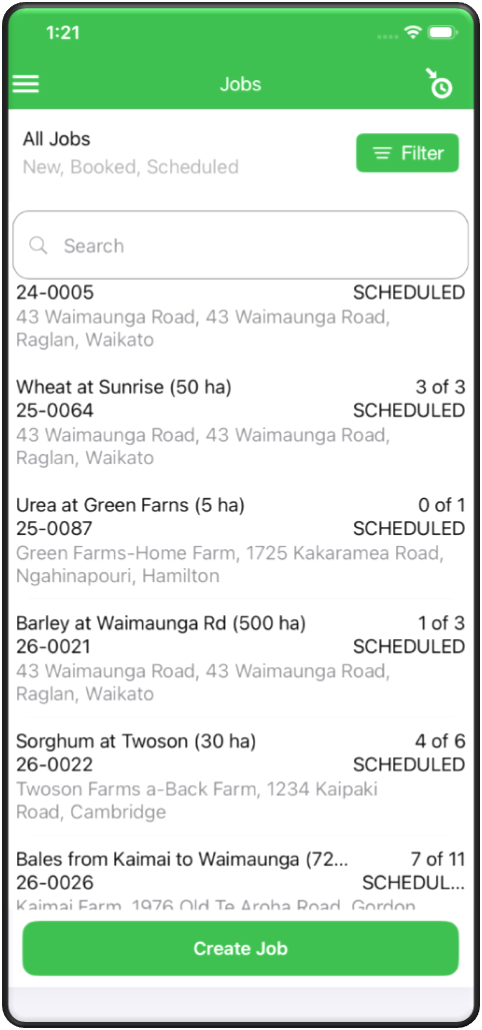
Viewing All Jobs
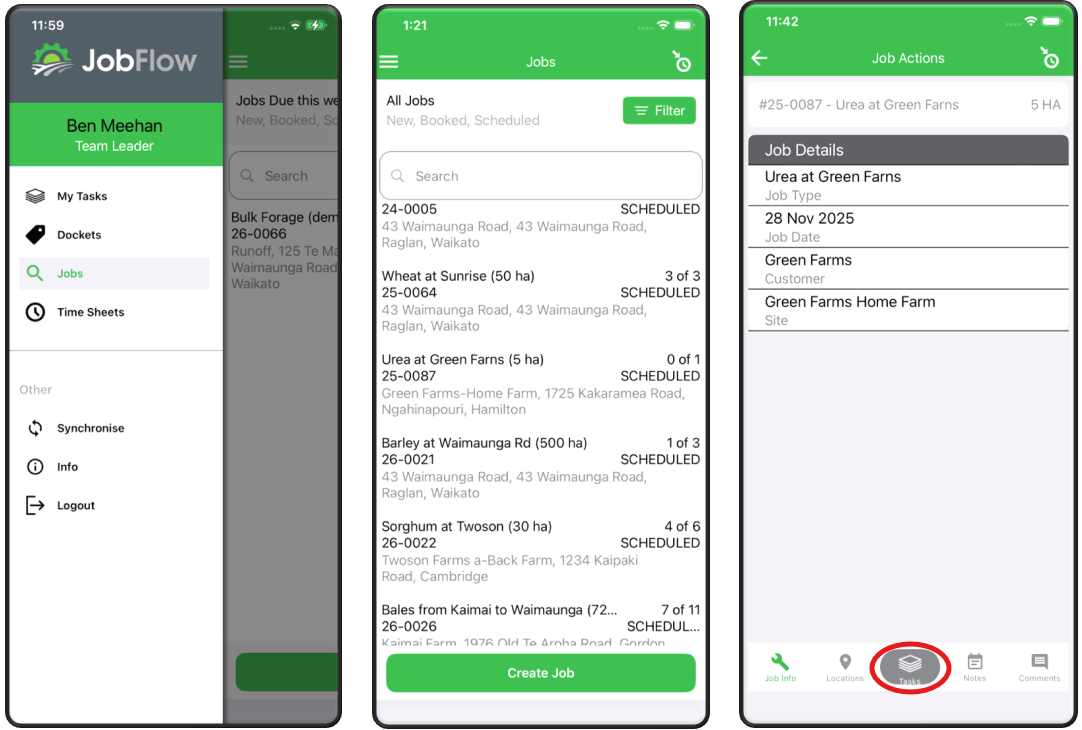
As a Team Leader, you can open all jobs and any tasks, including those not assigned to you.
To view all jobs and tasks:
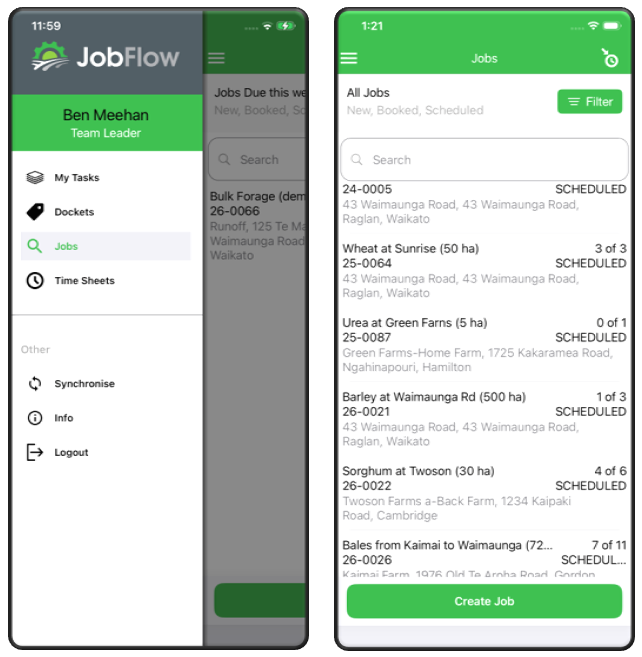
- Open Jobs through the hamburger menu.
- Tap any job tile to open the full job record.
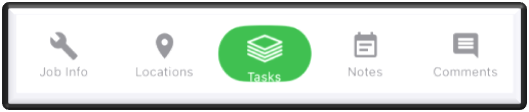
When you open a job that is not assigned to you, the action buttons allow you to view and update important job information, rather than start or finish the task.
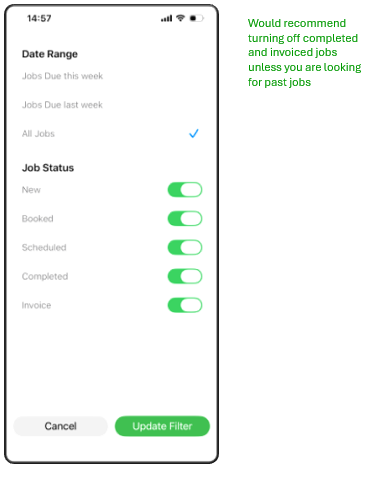
You can also filter jobs by tapping on the green filter button at the top-right of the screen.
Adding Tasks to a Job
- Open the job you want to update.
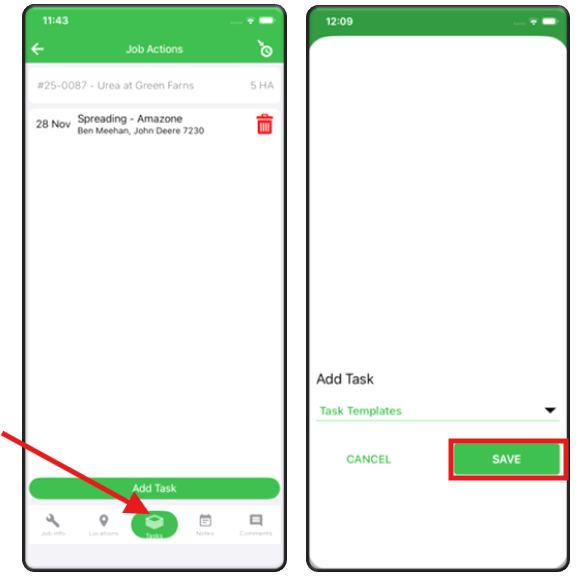
- Tap Tasks on the Action Buttons.
- Tap the green Add Task button at the bottom of the screen.
- Click on Task Templates and scroll through the list.
- Tap the task you want to add so it is highlighted.
- Tap the tick to confirm.
- If the template is not there, tap anywhere else on the screen to remove the list.
- Tap Cancel to go back to the task detail screen if you do not want to save any changes.
Assigning Resources
As a Team Leader, you have the ability to add resources to a task while out on the job.
- Go to the Jobs screen through the hamburger menu.
- Search or scroll to find the job you want to update.
- Tap the job tile to open the full job record.
- Tap Task in the action buttons at the bottom of the screen
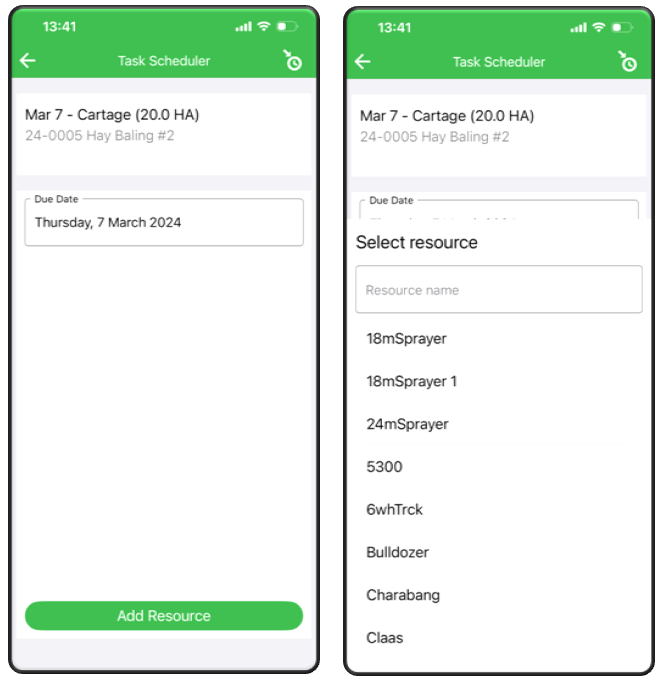
- Tap Add Resource at the bottom of the Task Scheduler.
- Scroll through the list of available resources or start typing the name into the Resource Name field.
- Tap the resource you want to add so it becomes highlighted, then confirm your selection.
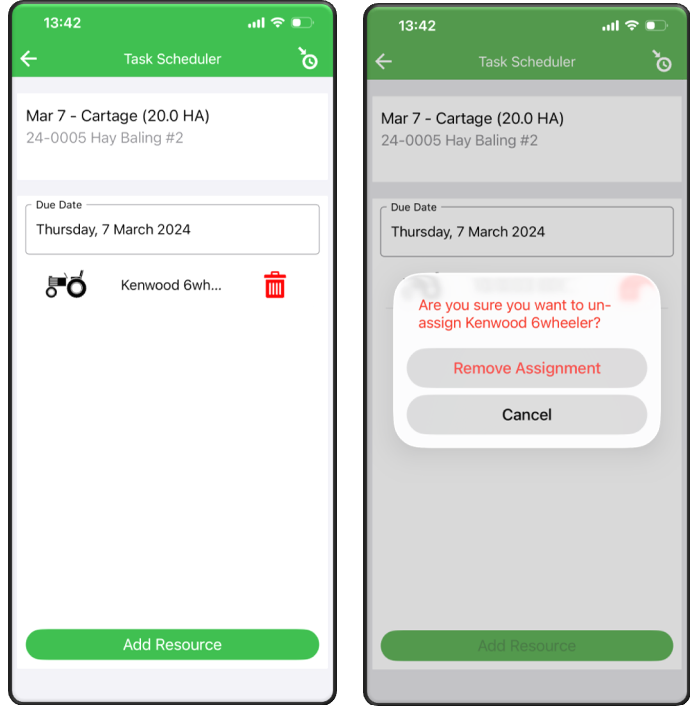
- The resource will now appear on the Task Scheduler page.
- If you need to remove a resource, tap the red rubbish bin beside it and confirm the removal.
Adding Comments
As a Team Leader, you have the ability to add resources to a task while out on the job.
- Open the Job that you want to add a comment to.
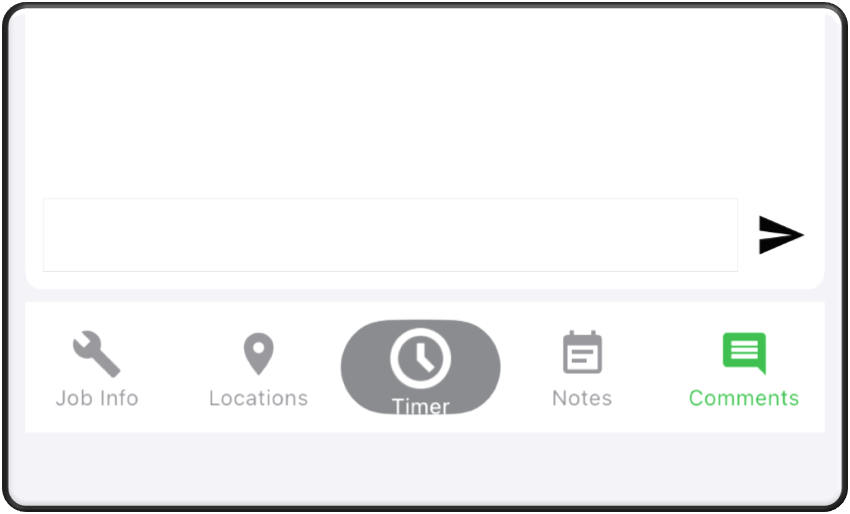
- Tap Comments in the Action Buttons at the bottom of the screen.
- Tap into the comment box at the bottom of the screen.
- Type your message.
- Tap the right‑pointing arrow to send.
Creating a New Job
As a Team Leader, you have the ability to create New Job’s while out on the job.
- Go to the Jobs screen through the hamburger menu.
- Tap Create Job at the bottom of the screen.
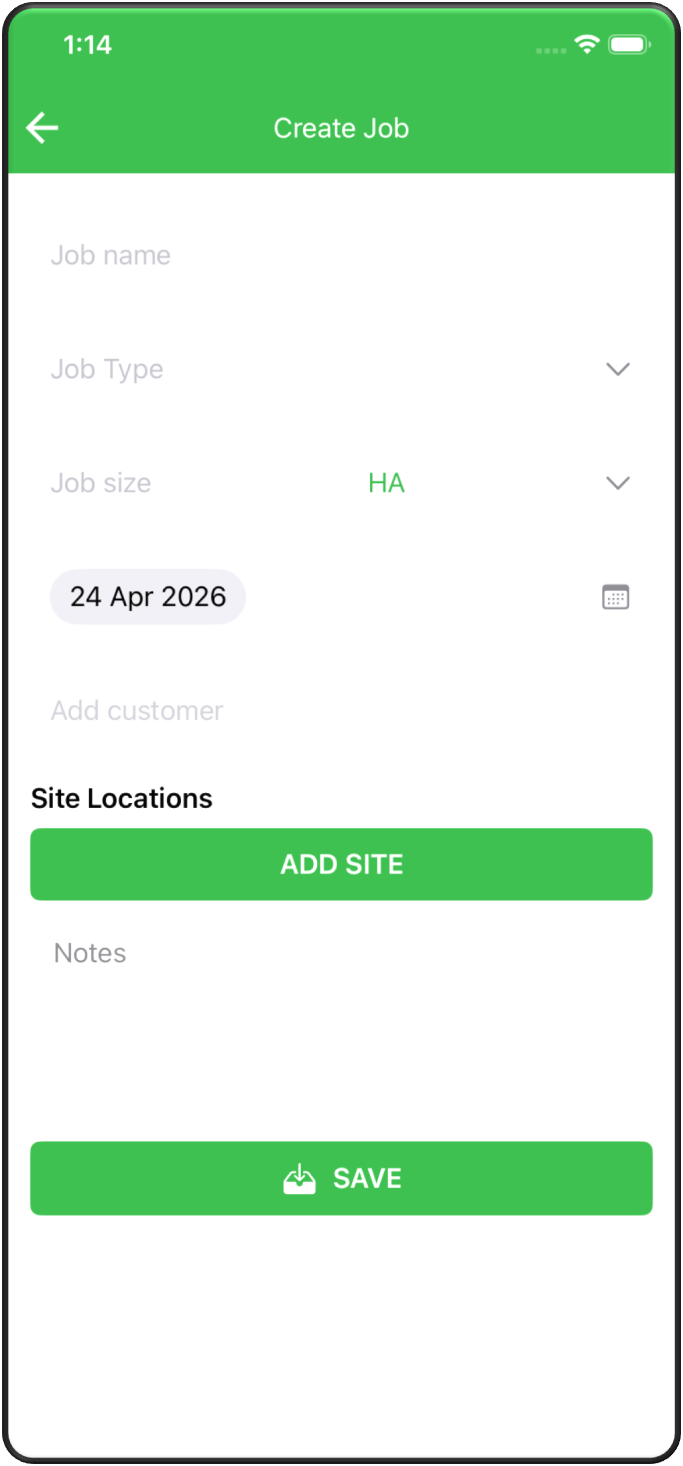
- Enter a Job Name.
- Use the dropdown lists to select:
- Job Type.
- Job Size.
- Date.
- Start typing the site location in the Add Site field and select the correct site.
- iOS: After selecting the site, tap Enter on the keyboard.
- Android: Tap the site name and it will automatically return you to the Create Job screen.
- Add any notes needed.
- Tap Save to create the job.
- Once the job has been created, add tasks and assign resources as per the instructions earlier in the Team Leader section of this manual.