
Anatomy of the Job Page - Part 2 (Tasks)
The Tasks section shows all operational and billing details for each task in the job. Each task tile includes the task name, size, charging information, assignment details, and additional options used for scheduling and invoicing.
The Tasks section
Each task tile contains key information used by both administrators and operators.
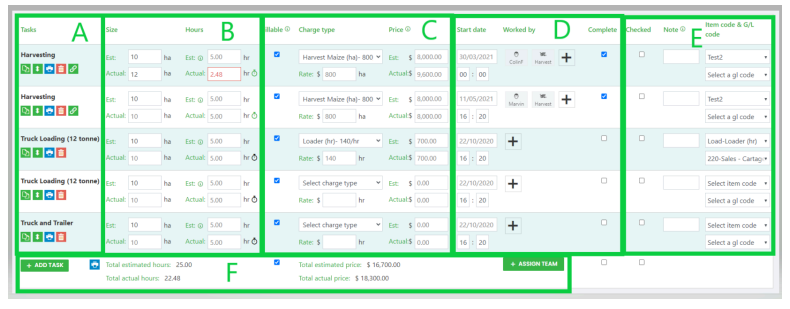
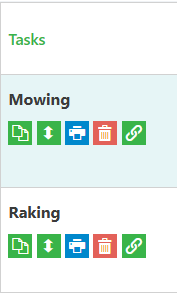
A: Task Name
- The task name is set in the Job Template
- It appears on the operator’s mobile task list
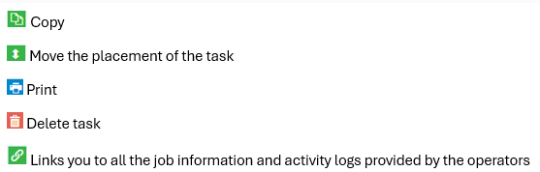
B: Task Size
All tasks have a task time and task size.
- The task size unit depends on the charge‑out rate
- If the rate is set to hours, the task size unit will match the job size unit
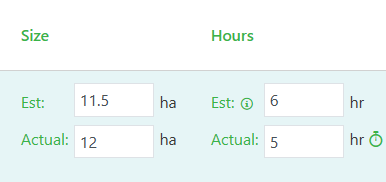
- Estimated task size is automatically calculated from:
- Job size
- Work rate in the job template
- Actuals are populated from the mobile app or can be manually entered
- If no actual value is entered, the estimated value flows through automatically
- When entries have been made on mobile, the stopwatch icon turns green
- Clicking it opens the operator’s Activity Log
C: Charging information
- Charge‑out rates are created in Settings → Charge‑out Rates
- Rates are linked to tasks through the Job Template
A default rate can be set on the template
- If a rate is manually overwritten, it must be removed before another rate can be selected
- Estimated and actual totals can be manually entered if required
D: Task assignment details
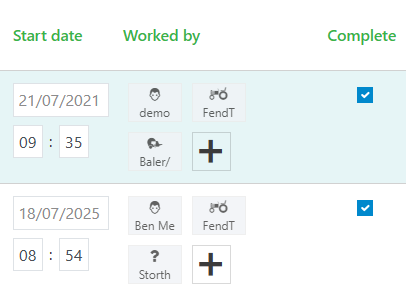
- Task due date/time defaults from the job due date
- Resources (operators, machinery, implements) can be assigned or updated by clicking +
- Once the operator completes the task,or an actual size/time is manually entered, the Complete checkbox is automatically set
E: Miscellaneous
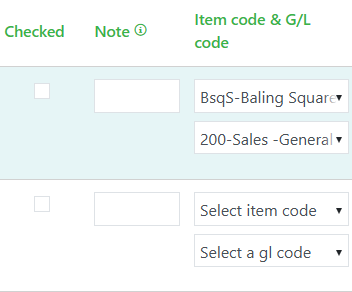
- Checked box
- Can be manually ticked to track review progress
- Task Notes
- Notes entered here appear on the operator’s mobile for this task only
- Item & GL Code
- Automatically populated from the selected charge‑out rate
- Can be manually overwritten to resolve invoicing issues
- If codes are incorrect, the charge‑out rate may need updating
- Assign Team
- If teams are set up, the Assign Team button adds all team resources to the task
F. Task Totals Summary
This section provides a real‑time overview of estimated and actual hours and pricing for all tasks on the job.
It helps you verify that the job is charging correctly before moving the job to Review or Invoice.

The totals shown include:
- Total Estimated Hours: calculated from all task size/time estimates
- Total Actual Hours: populated from mobile entries or manual actuals
- Total Estimated Price: based on estimated task size × charge‑out rate
- Total Actual Price: based on actual task size × charge‑out rate
These totals update automatically as tasks are completed, actuals are entered, or charge‑out rates are changed.