
Exporting Timesheets for Payroll
You can export timesheet data from JobFlow to streamline payroll processing. This workflow covers selecting the correct pay period, reviewing entries, exporting the CSV, and importing it into your payroll system.
Open the Timesheets Report
You can access your templates from the main menu.
- Open the Hamburger Menu
- Navate to Reports → Timesheets
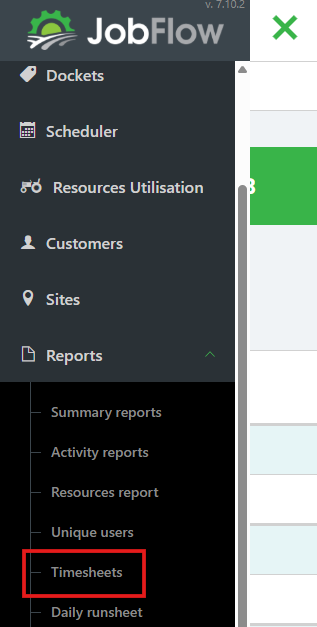
This page lists all timesheets submitted for the selected week.
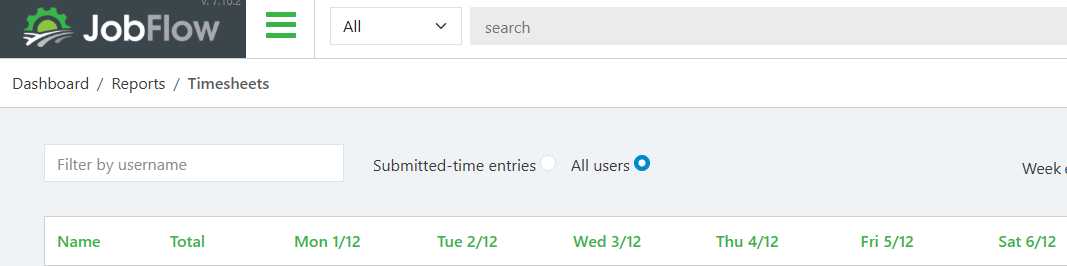
Change the Week or View All Users
- When using this report for the first time:
- Set your Week Ending Day
- Choose how many Weeks to Display, using the drop downs in the top right.
- To navigate between weeks:
- Use the date selector arrows (top right)
- To filter users:
- Select All Users to view or enter timesheets for users who have not submitted one, or
- Type a User's Name into the filter box to search for a specific person

Select the Correct Pay Period
Ensure the week ending selected is the last day of your pay period.
Examples:
- If your pay period runs Monday → Sunday, select Sunday as the week ending
- If you pay fortnightly, select Show 2 weeks
- For weekly pay periods, select Show 1 week
Confirm that the date range displayed in the top right matches your intended pay period.
Review and Confirm All Timesheets
- Click the timesheet entry for the user and day you want to update

- If needed time entries can be overriden and corrected.
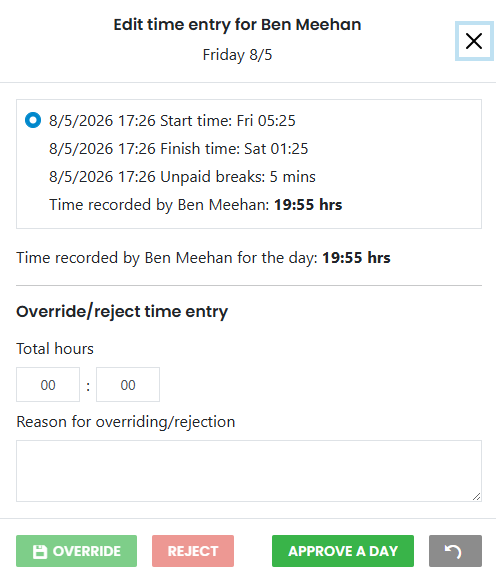
- Choose one of the following actions:
- Override
- Reject
- Approve A Day
Exporting Timesheets
You can export all timesheet data for the selected week:
- Click Summary CSV
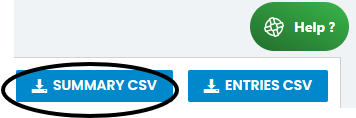
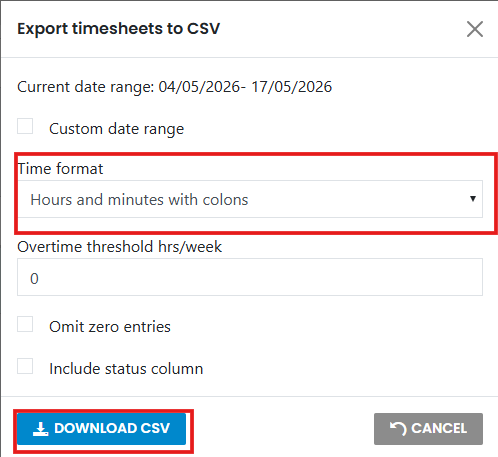
- A pop-up box will appear:
- Confirm the dates are correct.
- From the drop-down box, select Hours and minutes with colons.
- Click Download CSV (Bottom left)
- Save the file on your computer in your designated payroll folder.

Prepare the CSV for Payroll
- Open the CSV file
- Map the columns to match your payroll programme
- This reduces data entry errors
- Helps streamline processing

Upload Timesheets into Your Payroll Programme
- Log in to your payroll programme
- Navigate to the screen where timesheets are entered
- Select the correct pay period
If CSV import is available:
- Choose Import Timesheet
- Upload the JobFlow CSV file
If CSV import is not available:
- Manually enter hours using the JobFlow CSV as your reference
Continue through the standard payroll processing steps according to your payroll programme.