
The Dashboard
The Dashboard is your starting point in JobFlow. It gives you quick access to your work, key navigation tools, and important system information as soon as you log in.
Open the Dashboard
When you log in to JobFlow, the Dashboard is the default landing page.
From here, you can see:
- Your Work Queue
- Current Job States
- Quick‑action shortcuts
- The Hamburger Menu
- The Global Search Bar
- Access to Help & Support

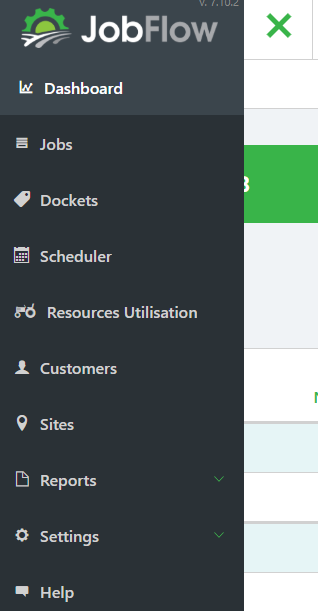
Use the Navigation Menu
You can open the main navigation panel from anywhere in JobFlow.
- Click the Hamburger Menu in the top‑left corner.

- Jobs
- Customers
- Templates
- Reports
- Settings
Selecting any item will take you directly to that section.
View Your Work Queue
Your Work Queue shows all jobs assigned to you or requiring your attention.
Each job tile displays:
- Job number
- Customer name
- Due dates
- Current status
Click any job tile to open it and begin working.
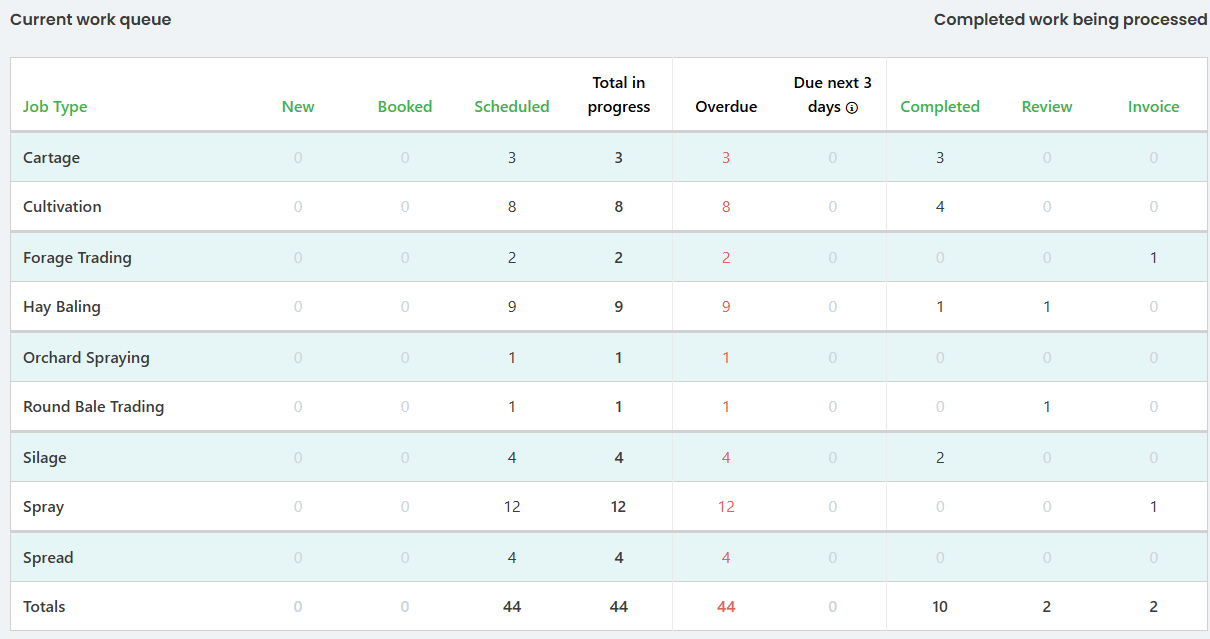
Job statuses help you track where each job is in the workflow.
Common statuses include:
- New
- Booked
- Scheduled
- Overdue
- Completed
- Review
- Invoice
These states update automatically as you move through tasks, giving you a clear picture of what needs attention.
Quick Actions
Across the Dashboard, you’ll find quick‑action buttons that let you:
- Create new jobs
- Add customers
- Open templates with a single click
These shortcuts are designed to reduce navigation time and help you get straight into your work.

Global Search
The Global Search Bar lets you quickly find information across the entire system without navigating through menus.

You can search by:
- Customer name or number
- Job codes
- Site names
- Phone numbers linked to a customer or job
As you type, JobFlow displays matching results with clear icons for:
- Customers
- Jobs
- Sites
Click a result to open its details instantly.
Help & Support
The Help section provides access to guides, FAQs, and support resources.
You can open it using:
The Help button in the T=top‑right corner of your screen
The Green Help button in the bottom-right corner of your screen
Through the dropdown options in the Hamburger Menu.
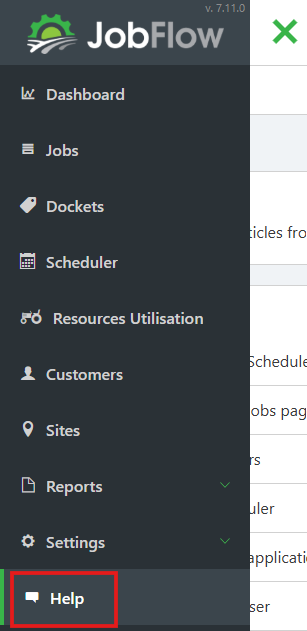
From here, you can:
- Browse or seach guides and FAQs
- Access training material
- Submit a support request
This is the best place to start if you’re unsure how to complete a task.