
How to Use the Calendar Based Scheduler
The Scheduler helps you plan, assign, and track tasks day‑by‑day with full visibility across operators, machines, implements, and job templates.
You’ll find the Scheduler on the Dashboard. It is the last blue tile on the right.

Layout Overview
When you first navigate into the Calendar Scheduler, the layout shows:
- The days of the week across the top.
- Tasks down the left side, grouped by job template (e.g. Cultivation, Hay Baling).
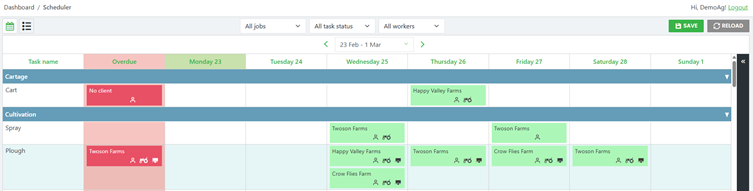
From here, you can review:
- Tasks booked for the current week
- Overdue tasks from the previous week (shown in the far‑left column)
Overdue Tasks
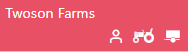
- Overdue tasks (including overdue tasks in the current week) appear in red
- Overdue tasks from the previous week appear in the far‑left column
- You can click and drag overdue tasks into the correct day to reschedule them
- Changes are visible only to you until you click Save
- The Save button shows a running tally of unsaved changes
What do the colours mean?
Blue tasks = New or booked, but not yet scheduled.

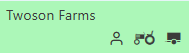
Green tasks = Scheduled and assigned.
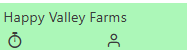
Stopwatch icon = Operator has started the task.
Grey tasks = Completed.
Red tasks = Overdue.
Assign or Remove Resources
To assign or remove resources (Operator, Machine, Implement):
- Click the task you want to update
- Task details appear on the right‑hand side
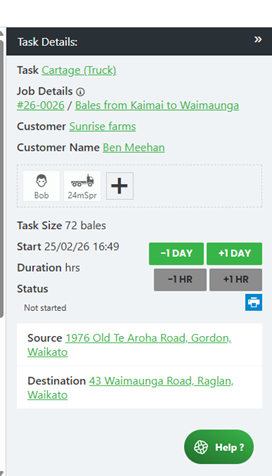
From here, you can
- Click on the plus icon to search for a resource,
- Click the double arrow beside Resources (bottom left) to open the full resource list
to open the full list of resources.
Drag and drop resources into the task
- Remove a resource by clicking its tile
- Drag resources directly onto the task tile in the calendar view
Once changes are made:
- The task tile displays a purple border and purple icons, indicating temporary changes visible only to you.
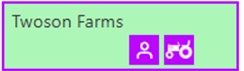
- Click Save to finalise the update.
- The task tile will turn green, meaning it’s scheduled and visible on the operator's mobile app.
Temporary Teams
An operator, machine, and implement can be combined into a temporary team to use across multiple tasks during the week. (e.g. Wendy + Tractor + Discs).
To create a temporary team:
- Open the full resource list at the bottom of the page
- Drag each resource into the Temporary Groups box (bottom left)
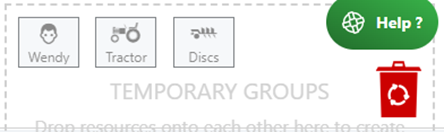
To remove a team:
- Drag the group to the red bin in the bottom‑right corner
To assign a team:
- Use the same method as assigning a single resource
Bulk Assign Resources
You can assign a resource to multiple tasks of the same type:
- Hold Ctrl on your keyboard
- Click each task you want to bulk‑assign
- Assign resources using the same method as a single task
- Click Save when finished
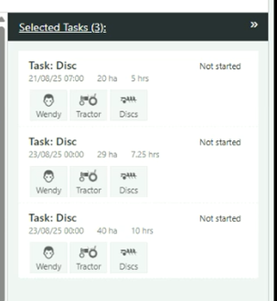
Shift Tasks into Schedule Slots
To move a task between days or time slots:
- Select the task
- Use the time‑adjust buttons in the Task Details panel on the right
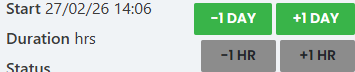
This is the only way to move tasks into the following week.
Viewing Task Details
Clicking a task opens more details for that job.
When hovering your mouse around the task name and job details, a View More option appears.
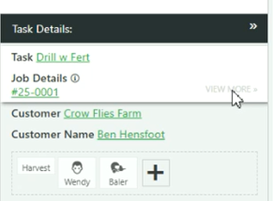
Selecting View More will show:
- All tasks linked to that job
- Hovering over an individual linked task shows another View More option to open that specific task
- Hovering over Destination details shows another View More option
- This displays all tasks associated with that site
- A site map appears at the bottom of the details tab
- Any information underlined in green is clickable and opens more details in JobFlow.
Examples:
- Clicking Customer Name opens the customer details page in a new tab
- Clicking the map opens the site pin in Google Maps