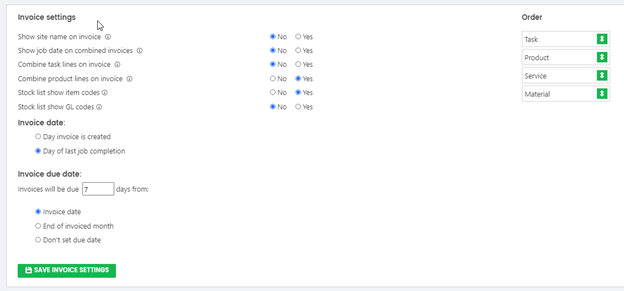
Xero Invoicing Settings Set Up
You can connect JobFlow to Xero directly from your Invoice Settings. Once connected, JobFlow can automatically create draft invoices in Xero based on your job workflow.
1. Open Invoice Settings
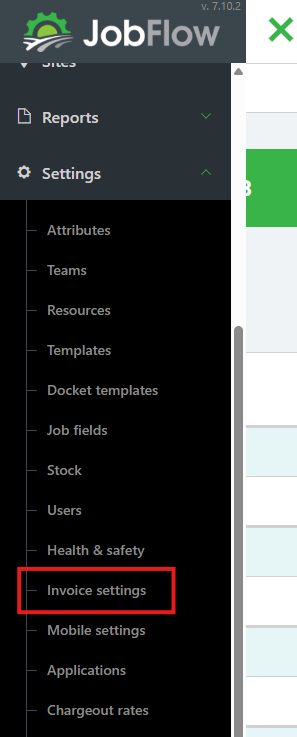
Go to: Hamburger Menu → Settings → Invoice Settings
Here you will see your Xero Connection Status, which shows whether JobFlow is currently connected to Xero.
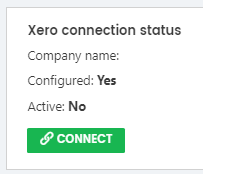
2. Start the Xero Connection
Click Connect.
This begins the authentication process.
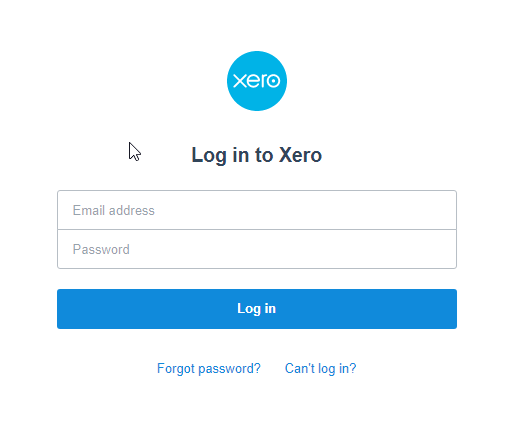
3. Log in to Xero
A Xero login window will appear.
- Enter your Xero email and password
- Complete any authentication prompts required by Xero
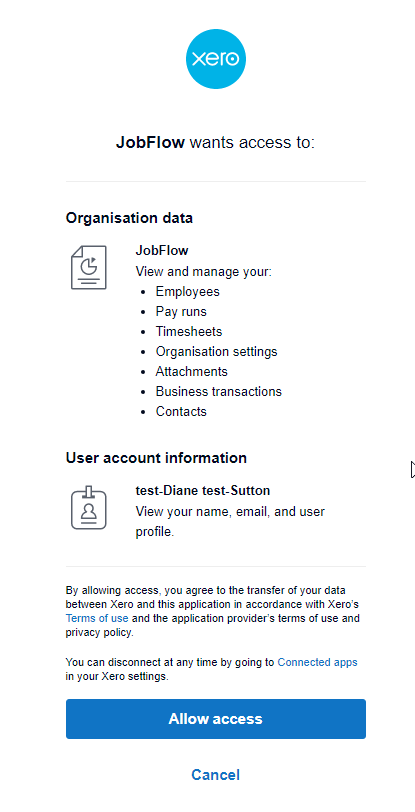
4. Allow JobFlow Access
After logging in, Xero will ask you to grant JobFlow permission to access your organisation.
Click Allow Access to continue.
5. Confirm the Connection
Once the connection is successful, the Xero Connection Status will update to show that Xero is active.
6. Configure Your Invoice Settings
After connecting, the Invoice Settings panel will allow you to configure:
- How invoices appear in Xero
- How invoice‑related information displays in JobFlow
- Any additional Xero‑specific options available for your workflow